
Operating System
Cyber threats evolve daily, but these 10 proven tactics will fortify your Windows or Mac against hackers, malware, and data breaches—without requiring advanced technical skills. Whether you're protecting personal files or business systems, these strategies deliver immediate, actionable security.
Enable Multi-Factor Authentication Everywhere
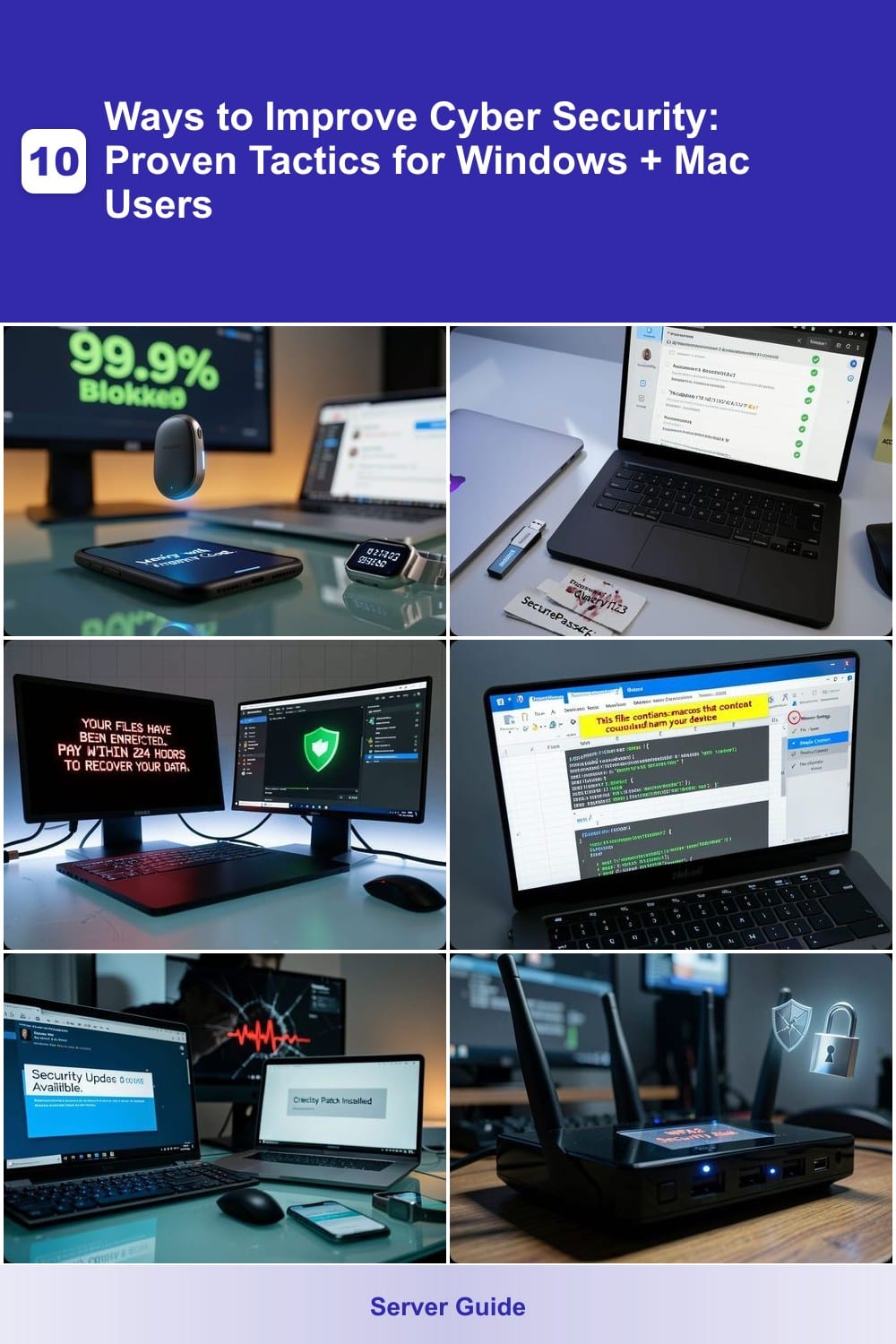
Forget relying solely on passwords—multi-factor authentication (MFA) blocks 99.9% of account takeovers, making it the single most effective security upgrade you can implement today. Whether it’s your email, bank account, or cloud storage, MFA adds a second verification layer (like a fingerprint, SMS code, or authenticator app) that thieves simply can’t bypass.
Most major services—Google, Microsoft, Apple, and Facebook—support MFA with zero-configuration setup on both Windows and Mac. For extra security, use authenticator apps (like Google Authenticator or Authy) instead of SMS codes, which are vulnerable to SIM-swapping attacks. The process takes under a minute to enable and instantly raises your security posture.
This is a must-have for anyone with sensitive accounts—freelancers, small business owners, or even casual users storing personal data. Start with your most critical accounts, like email and banking, and watch your security skyrocket. ✨
Use a Password Manager for All Accounts
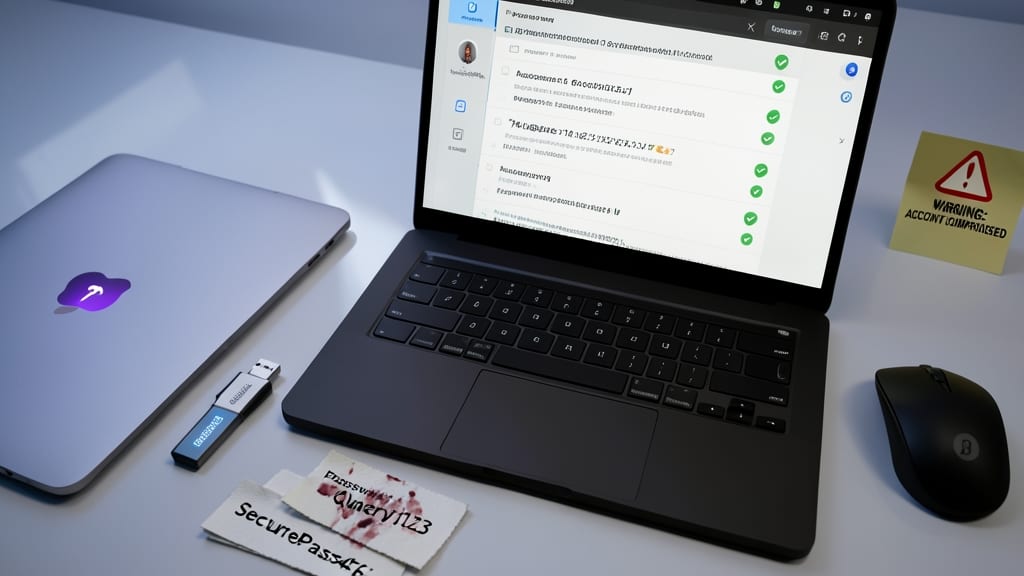
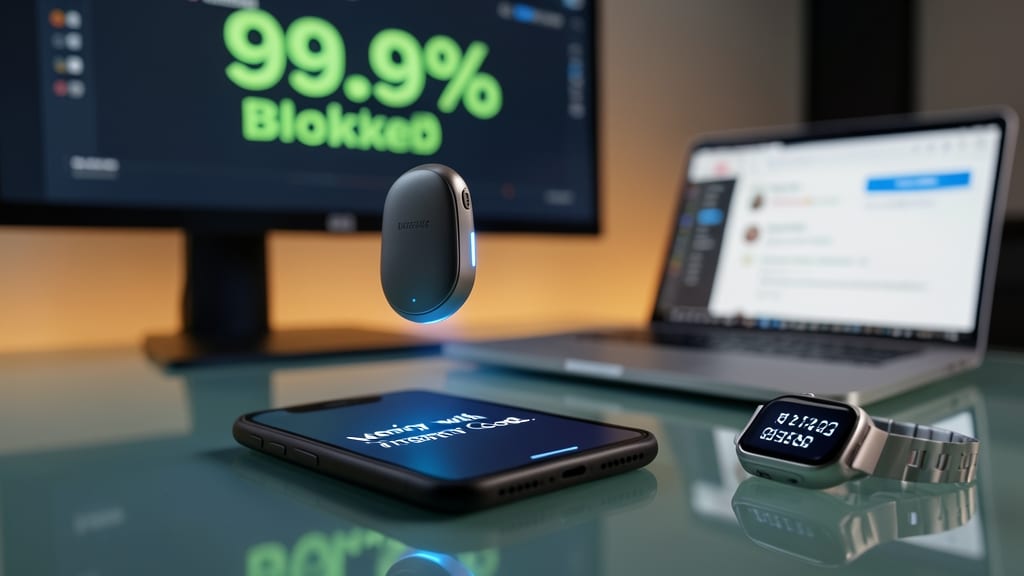
Tired of resetting passwords or worrying about hacked accounts? A password manager eliminates that stress by generating and storing unique, ultra-secure passwords for every online account—automatically. Tools like Bitwarden (free, open-source) and 1Password (user-friendly with travel mode) handle everything from login forms to credit card storage, all encrypted on your device.
With one master password to remember, you’ll never reuse weak credentials again. Features like two-factor authentication integration and breach monitoring alert you if your data appears in leaks. Both options sync across devices, so your passwords travel securely with you—whether you're on a Windows PC, Mac, or smartphone.
This is the #1 defense against credential stuffing attacks, making it a must for anyone juggling multiple accounts—from freelancers to families sharing devices. 💻
Install Real-Time Antivirus with Ransomware Protection
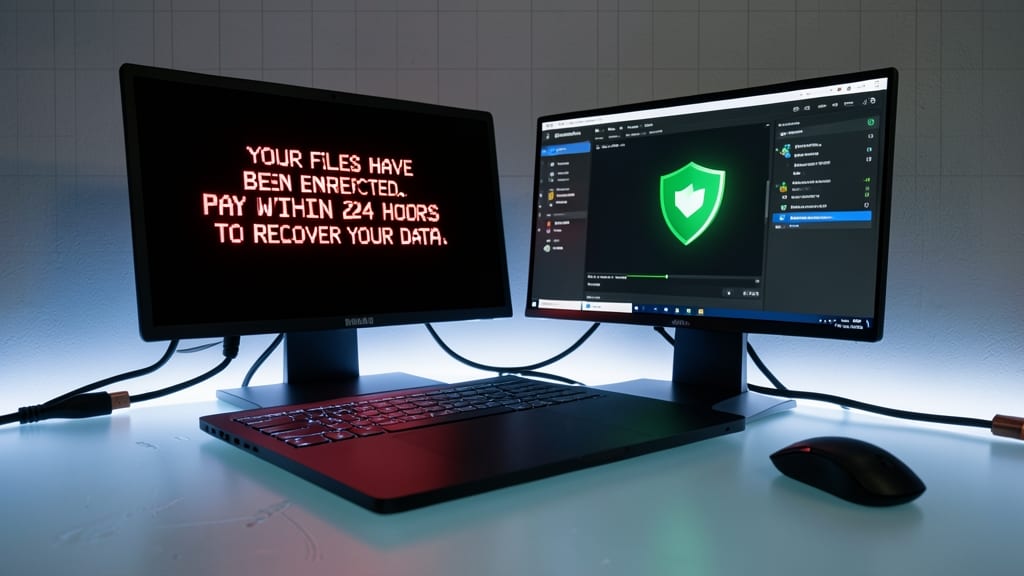
If you’ve ever wondered how hackers lock you out of your own files, the answer is often ransomware—and real-time antivirus stops it before it starts. Unlike traditional scans, modern solutions like Malwarebytes or Windows Defender (with cloud delivery) monitor downloads and processes in real time, blocking threats before they even run.
These tools use behavioral analysis to detect suspicious activity, like unauthorized file encryption, and cloud-based threat intelligence to stop zero-day exploits. For example, Malwarebytes’ ransomware rollback feature can restore encrypted files if detected early. Even Windows Defender now includes exploit protection for critical apps, making it a solid free option for most users.
This is a must-have for anyone handling sensitive data—freelancers, remote workers, or parents managing kids’ devices. Set it up once and forget it, but don’t skip the regular signature updates to keep pace with new threats. ✨
Disable Macros in Microsoft Office Files
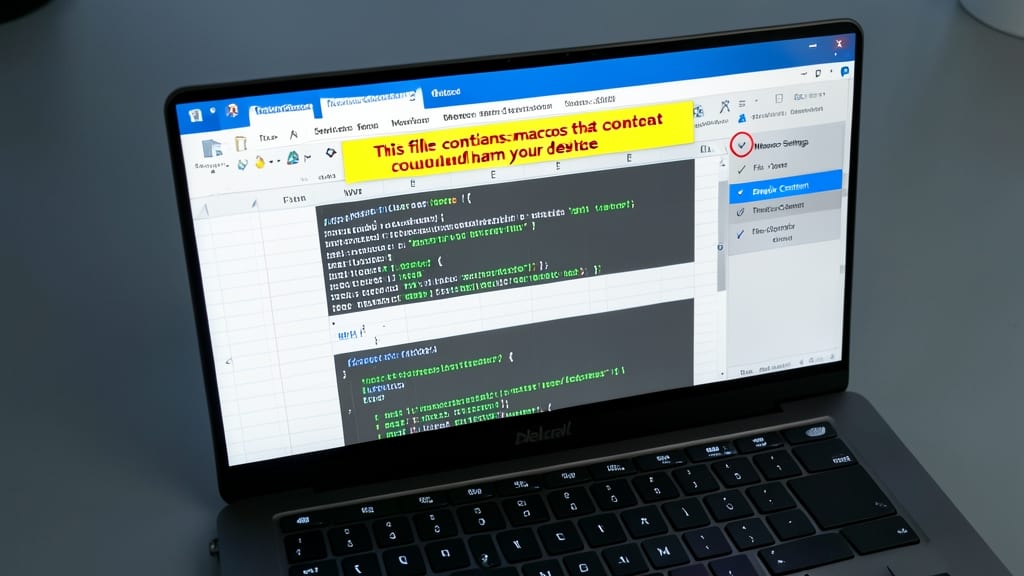
Most cyberattacks start with a single click—specifically, when you open a malicious Word or Excel file containing hidden macros. These automated scripts can hijack your system in seconds, but Microsoft Office makes blocking them effortless with a single setting.
In Office 2016 or later, navigate to File > Options > Trust Center > Trust Center Settings > Macro Settings, then select "Disable all macros without notification"—this stops 90% of phishing attacks before they execute. The setting applies to all Office apps (Word, Excel, PowerPoint) and works on both Windows and Mac.
This is the zero-effort security upgrade for anyone handling documents from untrusted sources—freelancers, remote workers, or even casual users downloading files from email. ⚡
Update Operating Systems and Software Automatically
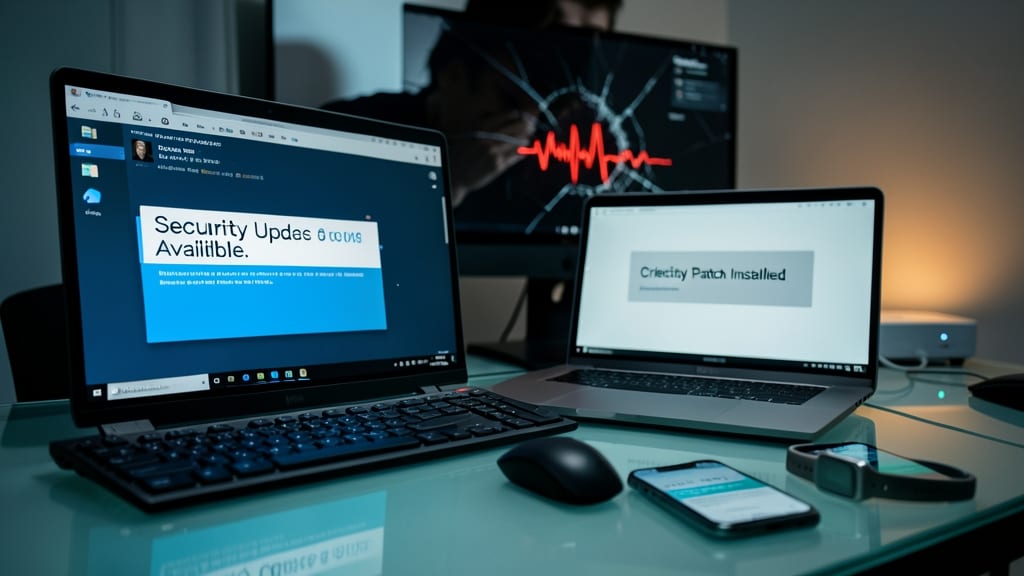
Hackers don’t wait for you to manually update your software—and neither should you. Automatic updates are your first line of defense against zero-day exploits, which attackers use to breach systems before developers can patch them. Enabling this simple setting ensures your Windows, macOS, and third-party apps (like browsers and plugins) stay fortified against the latest threats without lifting a finger.
On Windows, navigate to Settings > Windows Update and toggle "Automatic updates" to "On." For macOS, go to System Preferences > Software Update and check "Automatic updates." Most third-party apps (Chrome, Firefox, Adobe Acrobat) also offer one-click update settings in their preferences. This zero-configuration approach closes security gaps instantly, often before you even notice a threat exists.
This tactic is ideal for busy professionals, gamers, or anyone who skips updates due to time constraints. It’s the closest thing to "set and forget" cybersecurity—just ensure your device stays connected to the internet. ⚡
Secure Your Wi-Fi Network with Strong Encryption
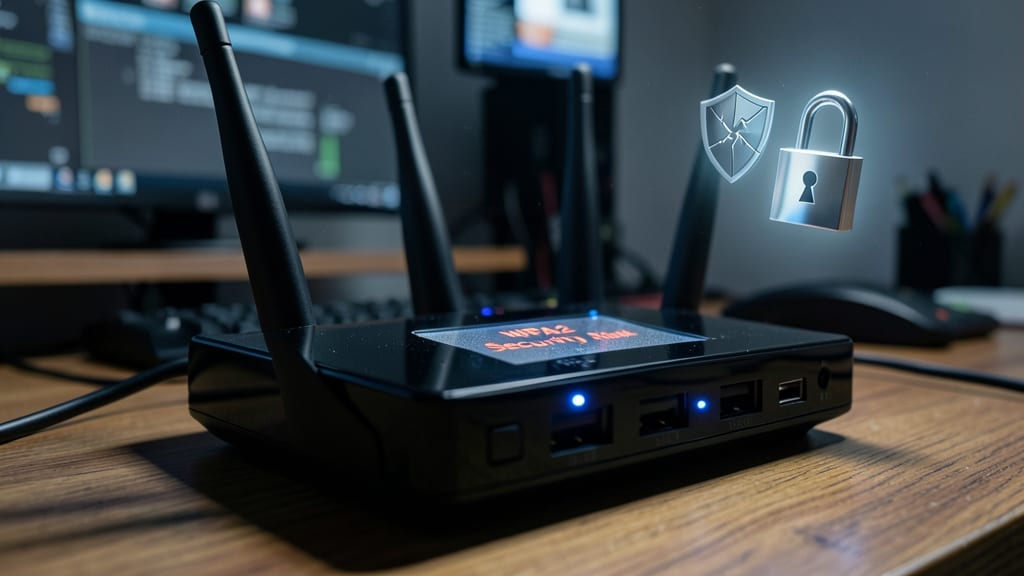
Your Wi-Fi network is the front door to your digital life—and like a flimsy lock, default router settings make it an easy target for hackers. Most routers ship with WPA2 encryption, which is outdated and vulnerable to brute-force attacks. Upgrading to WPA3 adds forward secrecy, making it nearly impossible for neighbors or attackers to crack your password, even if they intercept your traffic.
Start by accessing your router’s admin panel (usually via 192.168.1.1 or a similar IP) and changing the SSID password from the default—tools like RouterPasswords.com can help if you’ve lost it. Then, create a separate guest network for IoT devices like smart bulbs or security cameras. This isolates them from your main network, preventing malware from spreading to your laptop or phone if a device gets compromised.
This setup is perfect for home offices, gamers, or anyone with smart devices—because even a single unsecured device can turn your network into a gateway for attacks. 🌟
Block Advertising Trackers in Your Browser
Did you know your browser is silently sharing your browsing habits with hundreds of third-party trackers? These invisible scripts collect data to serve targeted ads—or worse, sell your activity to the highest bidder. With just a few clicks, you can shut them down for good.
Extensions like uBlock Origin (Chrome/Firefox) or Safari’s built-in tracker blocker (iOS/macOS) stop 90%+ of tracking scripts by default. For even stricter privacy, enable Enhanced Tracking Protection in Firefox or use Privacy Badger to block fingerprinting attempts that uniquely identify you across sites.
This is especially valuable for users on public Wi-Fi, journalists, or anyone handling sensitive research. A few minutes of setup now means fewer ads, faster page loads, and far less exposure to malicious tracking networks. ✨
Encrypt Sensitive Files with Built-In Tools
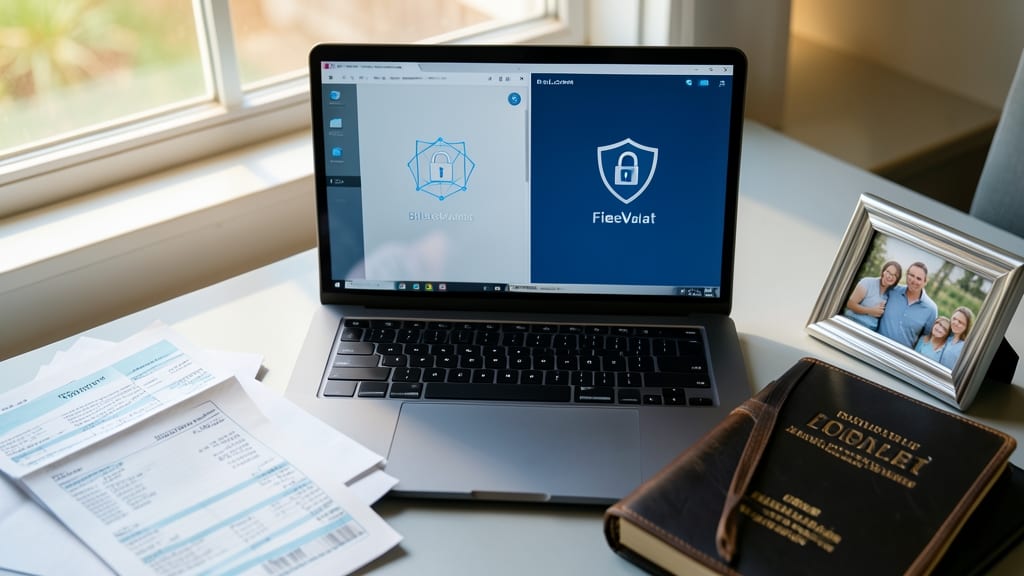
Your most private files—tax returns, client contracts, or family photos—don’t need third-party encryption apps to stay safe. Both Windows BitLocker and macOS FileVault offer military-grade AES-256 encryption built right into your operating system, free of charge.
BitLocker encrypts entire drives (including external ones) with a password or TPM chip for hardware-backed security, while FileVault works seamlessly with Apple IDs or recovery keys. Both tools require zero config beyond enabling them—just a few clicks in System Preferences or Control Panel. Even if your device falls into the wrong hands, your data remains locked away until the correct passphrase is entered.
This is the perfect solution for freelancers, remote workers, or anyone handling sensitive data—no extra software to install or subscription fees. Just turn it on and forget it. ✨
Regularly Backup Critical Data to Cloud and External Drives
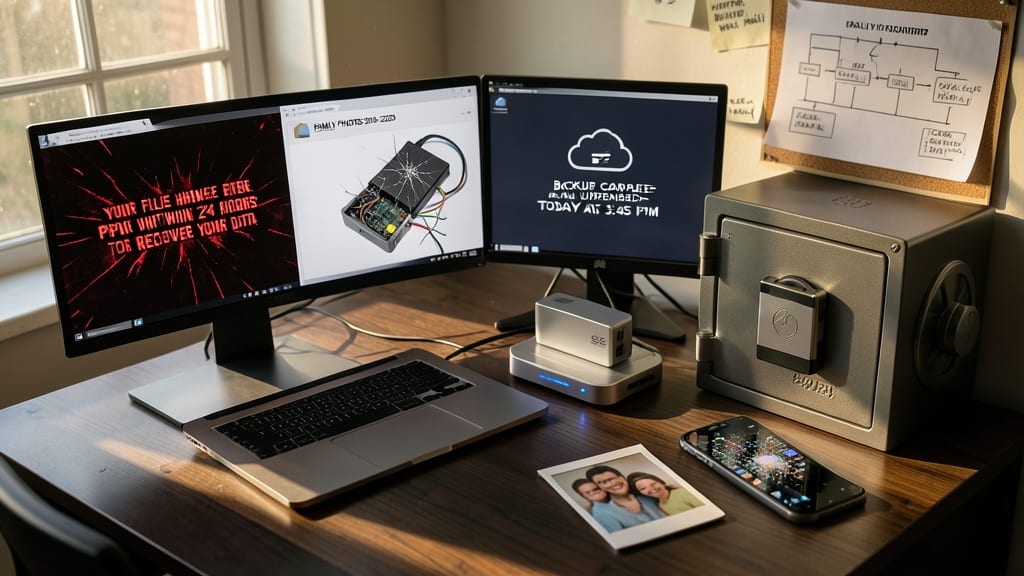
Losing years of family photos or critical work files to a ransomware attack or dead hard drive is a nightmare—one the 3-2-1 backup rule prevents. This simple strategy ensures you always have recoverable copies, no matter what disaster strikes.
Create three copies of your data: one on your main drive, one on a cloud service like Backblaze ($6/month for unlimited storage), and one on a physical external drive (SSD for speed, HDD for capacity). Keep one copy offsite—whether in a fireproof safe or cloud storage—to guard against theft or local disasters. Automate backups with tools like Time Machine (Mac) or File History (Windows) to avoid manual errors.
Freelancers, small business owners, and parents storing digital memories benefit most from this approach. Set up your backups today—it’s the digital equivalent of an insurance policy. ✨
Monitor Accounts for Suspicious Activity
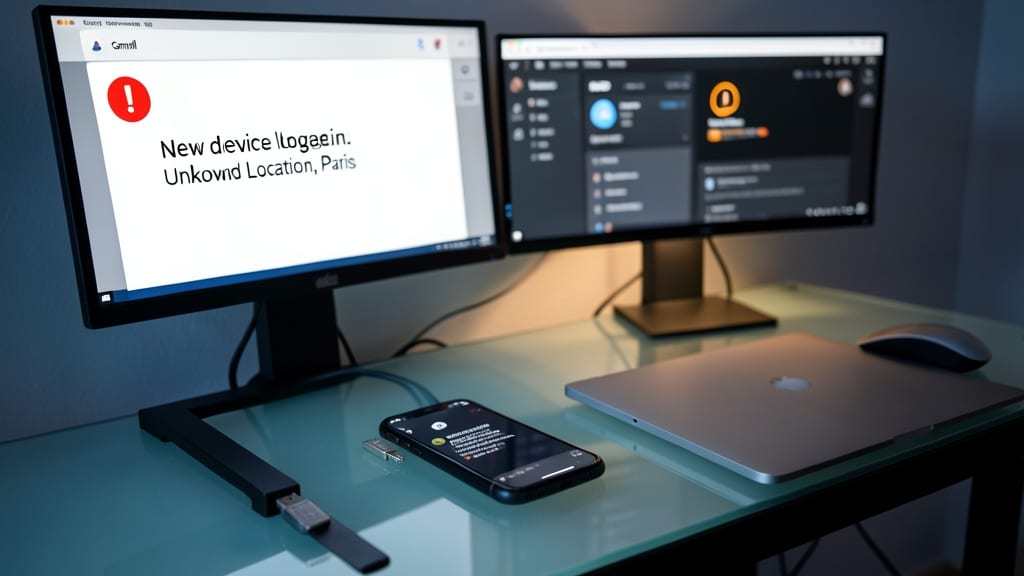
Your email or bank account could already be compromised—and you wouldn’t know it. Real-time login alerts in Gmail, Apple ID, or bank apps notify you instantly if someone tries (or succeeds) in breaking in, giving you seconds to act before damage spreads.
Most major services offer zero-configuration alerts—just enable notifications in settings. For extra protection, use Have I Been Pwned, a free tool that scans your email against billions of leaked credentials. It’s like a cybersecurity checkup with no appointment needed.
This is a must for anyone managing financial accounts, email, or cloud services. Set it up in 2 minutes and sleep easier knowing you’ll catch breaches before they become disasters. ✨