
Software
Microsoft is integrating Teams reminders directly into the app menu, transforming how users manage tasks. Discover these 10 essential features that will streamline your workflow and boost productivity—whether you're a remote worker or team leader.
Built-in Task Creation From Chat
Forget juggling sticky notes and separate reminder apps—Microsoft Teams is now turning your chats into instant action items. The Built-in Task Creation From Chat feature lets you convert any message into a structured reminder with a single click, right from the conversation thread.
With this update, you can highlight a message, tap the new "Create Reminder" button, and instantly turn it into a task with due dates, assignees, and priority levels—all while staying in context. The integration works seamlessly with Teams channels and private chats, ensuring no task slips through the cracks during brainstorming sessions or project discussions.
This is a game-changer for collaborative teams—no more losing track of follow-ups or action items buried in chat history. Whether you're coordinating a marketing campaign or troubleshooting IT issues, this keeps everyone aligned without switching apps. ✨
Smart Recurring Reminders With Calendar Sync
Tired of juggling separate apps for reminders and calendar events? Microsoft’s new Teams reminders now syncs directly with Outlook Calendar, automatically suggesting the best recurrence patterns (weekly, monthly, or custom intervals) to keep your schedule organized.
The integration is seamless—set a recurring reminder in Teams, and it instantly appears in Outlook with the same frequency rules. You’ll also get real-time updates if changes occur in either app, ensuring no missed deadlines. The system even learns from your habits, adjusting suggestions over time for tasks like "pay rent" or "team standup meetings."
This feature is a game-changer for professionals managing multiple deadlines or teams relying on shared schedules. Whether you’re a project manager or a freelancer, the dual sync eliminates manual entry and keeps everything in one place. ✨
Priority-Based Reminder Notifications
Ever feel overwhelmed by reminders that all sound the same? Microsoft Teams’ priority-based notifications solve this by letting you label tasks as Low, Medium, or High—with distinct visual cues like color-coded badges or sound profiles to ensure critical deadlines stand out.
You’ll see red alerts for urgent tasks (like client calls), yellow for medium-priority items (e.g., follow-ups), and green for low-priority notes (like future reading). The system also adjusts notification frequency—high-priority items repeat until marked complete, while low-priority ones fade into the background. This keeps your focus sharp without drowning in alerts.
Perfect for managers juggling deadlines or individuals drowning in notifications, this feature turns chaos into clarity. 💡
Voice-Activated Reminder Creation
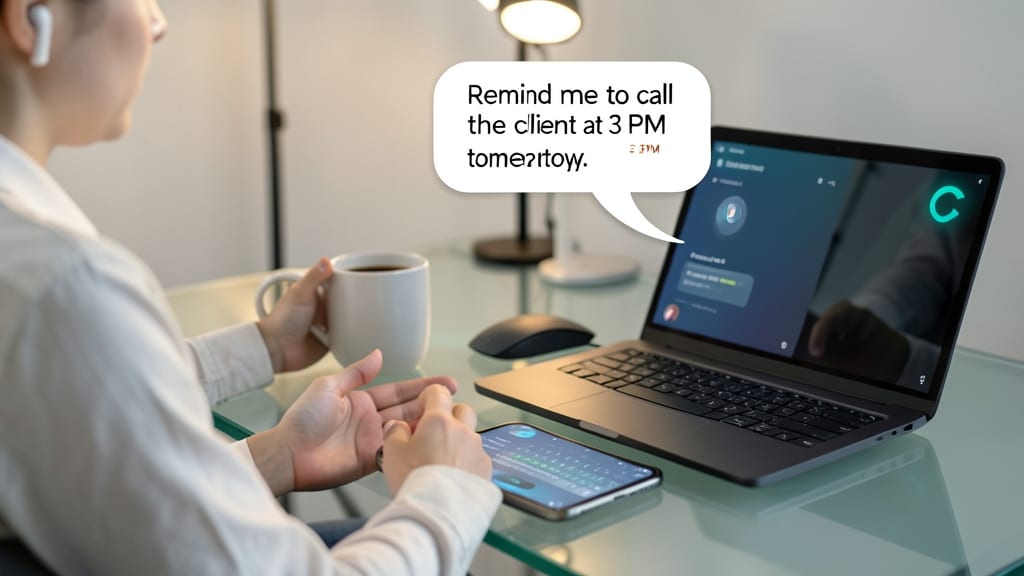
Forget typing when your hands are full—Microsoft’s voice-activated reminders in Teams let you create tasks with just your voice. Simply say, "Remind me to call the client at 3 PM tomorrow" or "Set a reminder for the quarterly report due Friday," and Teams captures it instantly using the built-in Cortana integration (or your default voice assistant).
This feature supports natural language commands, understands context like dates and deadlines, and even works in noisy environments thanks to background noise suppression. Best of all, it syncs with your existing reminders, so nothing slips through the cracks. Whether you're driving, cooking, or juggling a meeting, hands-free task entry keeps you moving. 💻
Shared Team Reminders With Deadlines
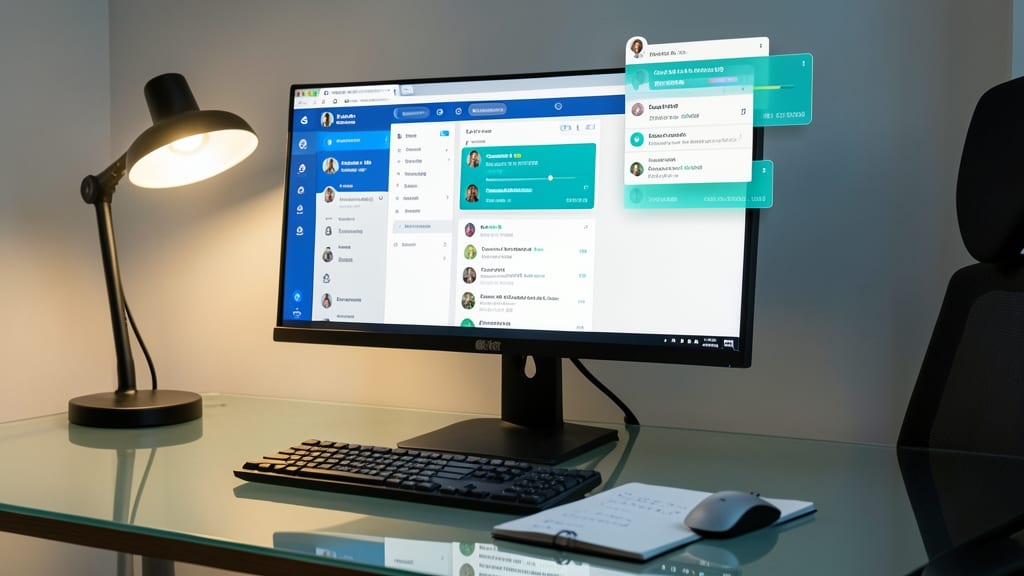
Tired of chasing down team members for updates on shared tasks? Microsoft Teams’ shared team reminders lets you assign, claim, or update reminders—all within the same interface. This feature transforms passive reminders into an active collaboration tool, with real-time updates and clear ownership tracking.
Each reminder includes deadline tracking, assignee avatars, and progress bars to visualize task status. Team leads can set due dates and watch as members claim tasks directly from the reminder board. Notifications sync across devices, ensuring no one misses a critical deadline. The drag-and-drop interface makes reassigning tasks effortless, while comments keep context alive.
Perfect for project managers, developers, or any team juggling multiple deadlines, this feature turns chaotic group tasks into a structured, transparent workflow. 🌟
AI-Powered Reminder Suggestions
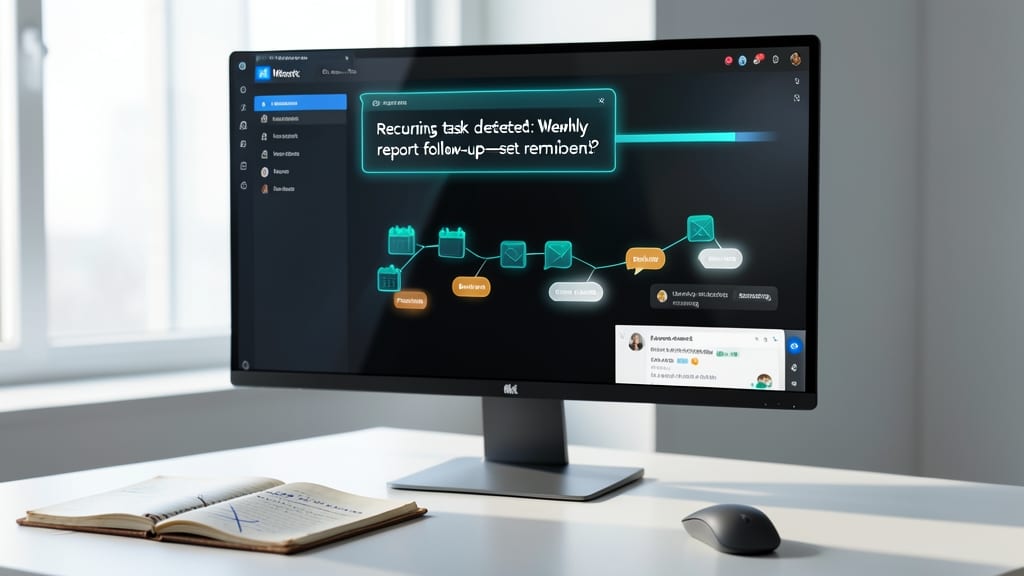
Tired of manually creating reminders for the same tasks every week? Microsoft Teams’ AI-Powered Reminder Suggestions scans your chats and emails to spot patterns—like recurring meetings or pending follow-ups—and automatically proposes reminders tailored to your workflow.
The AI analyzes keywords (e.g., "submit report," "call client") and suggests context-aware reminders with one-click confirmation. It learns from your interactions, reducing repetitive setup. For example, if you frequently discuss "quarterly reviews" on a specific date, it’ll flag them proactively.
Perfect for professionals juggling emails and chats, this feature cuts down on manual input while keeping you on track. No more forgetting follow-ups buried in conversations! ✨
Cross-Platform Reminder Access
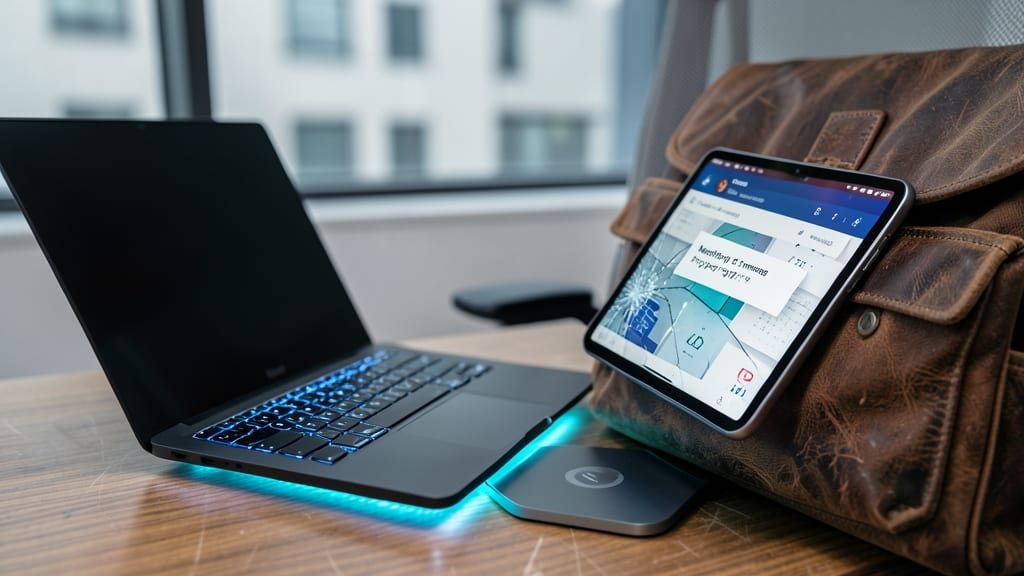
Hybrid workers juggling laptops, phones, and tablets will finally breathe easier—Teams reminders now sync instantly across all your devices. No more checking one app on your desktop only to miss it on your mobile. The integration ensures your to-do list stays visible, whether you're switching from your Windows PC to an iPhone or wrapping up tasks on a web browser.
Behind the scenes, Microsoft’s real-time sync engine handles the heavy lifting, updating reminders across platforms with zero manual effort. The UI remains consistent—whether you’re tapping on a touchscreen or typing on a keyboard, the experience feels native. For teams spread across offices, co-working spaces, or home setups, this means no more fragmented task lists.
This feature is a game-changer for remote managers, freelancers, and students who rely on multiple devices. Whether you’re drafting a reminder on your laptop during a meeting or checking it on your phone during commute, your tasks stay front and center. ✨
Reminder Completion Checklists
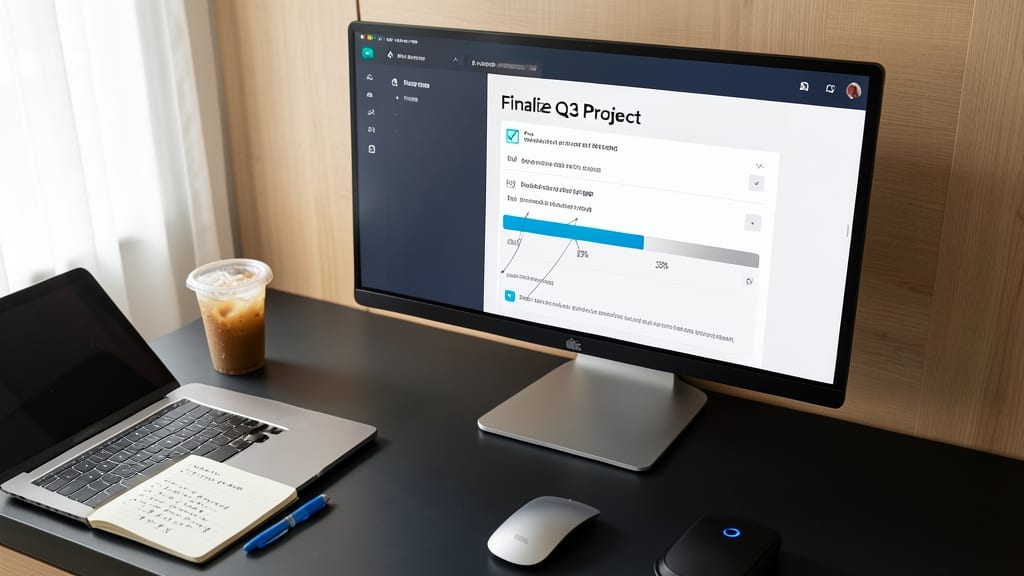
Overwhelmed by sprawling projects with too many moving parts? Teams’ new reminder completion checklists turn vague tasks into actionable, bite-sized steps—no more forgetting critical sub-tasks buried in your to-do list.
Each reminder now supports nested sub-tasks with checkboxes, progress bars, and drag-and-drop reordering. Need to prep for a client demo? Break it into “research competitor data,” “design slides,” and “test presentation timing”—then watch completion percentages update in real time. The visual hierarchy ensures you spot incomplete steps instantly, while @mentions let you delegate sub-tasks to teammates.
Ideal for project managers, developers coordinating sprint tasks, or anyone juggling multi-step workflows, this feature eliminates the mental overhead of tracking progress manually. ✨
Integration With Third-Party Apps
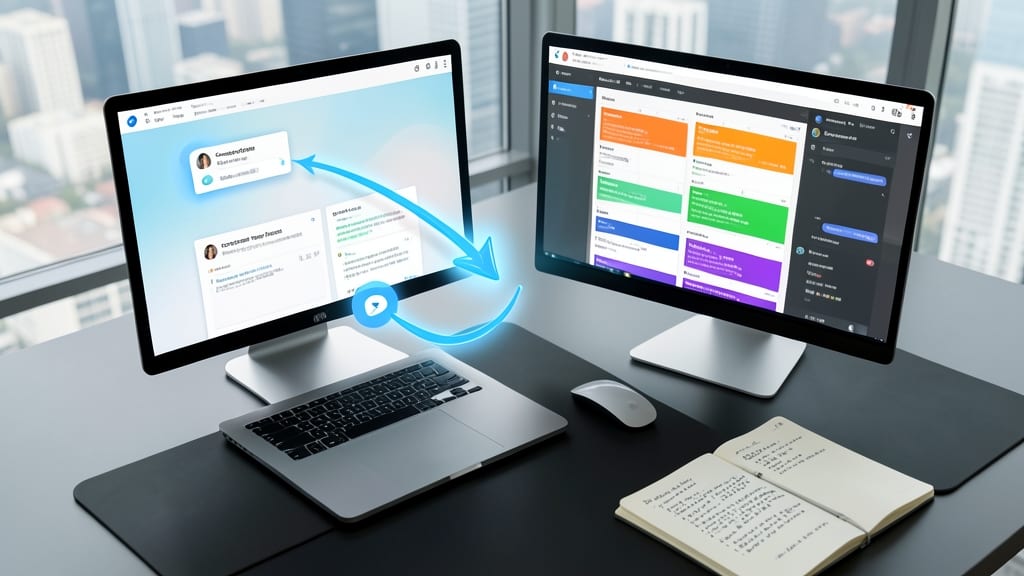
Power users juggling multiple tools will love how Teams reminders now natively integrate with third-party apps like Trello, Asana, and Slack. This eliminates the need for manual data entry across platforms, keeping all your tasks in one centralized hub.
With one-click connections, you can sync reminders directly to Trello boards or Asana projects, ensuring no task slips through the cracks. The integration supports real-time updates, so changes made in Teams automatically reflect in your preferred project management tool—and vice versa. For teams using Slack, reminders can even trigger notifications in relevant channels.
This feature is a game-changer for project managers, developers, and remote teams who rely on multiple apps. Say goodbye to context-switching—your reminders now live where you work. ✨
Offline Reminder Mode
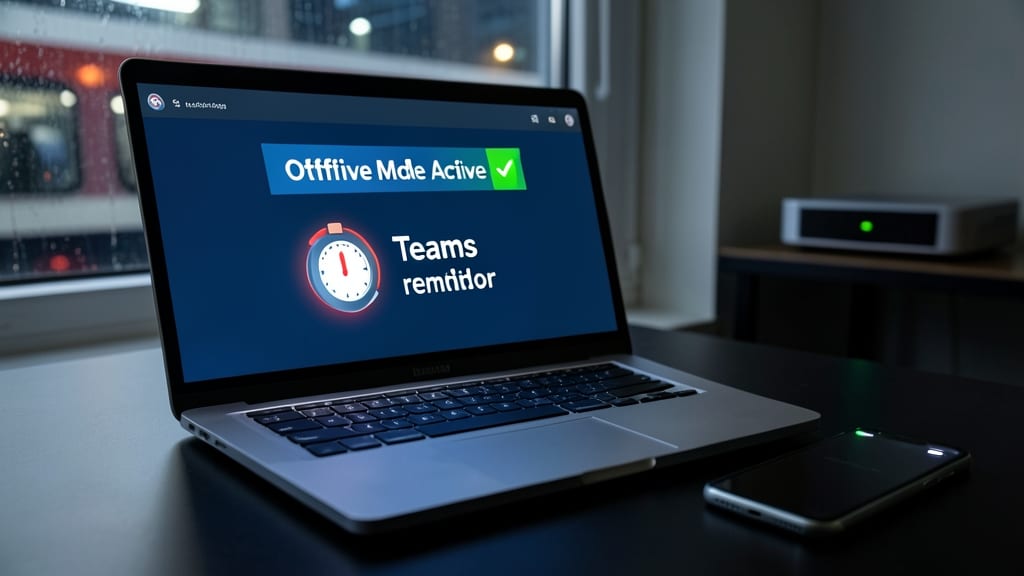
Tired of losing reminders when your internet cuts out mid-conversation? Microsoft’s Offline Reminder Mode ensures your tasks stay safe—even when your connection doesn’t. This feature caches reminders locally, so critical deadlines or team updates won’t vanish if you’re on a train, in a meeting, or stuck in an area with spotty Wi-Fi.
Once you reconnect, the system auto-syncs all changes, preserving due dates, priorities, and even shared tasks. No manual re-entry needed—just seamless continuity. It’s especially useful for field teams or remote workers who rely on Teams but can’t always count on stable networks.
Perfect for anyone who’s ever missed a reminder because of a dropped call or lagging VPN. Your tasks stay on track, no matter what. ✨