
Tip & Trick
Microsoft OneNote 2013 remains a powerhouse for digital note-taking, yet most users miss its hidden productivity boosters. These 10 pro tips will transform how you organize, search, and collaborate—cutting your workflow time by half.
Quick Notes with OneNote's Handwriting Recognition
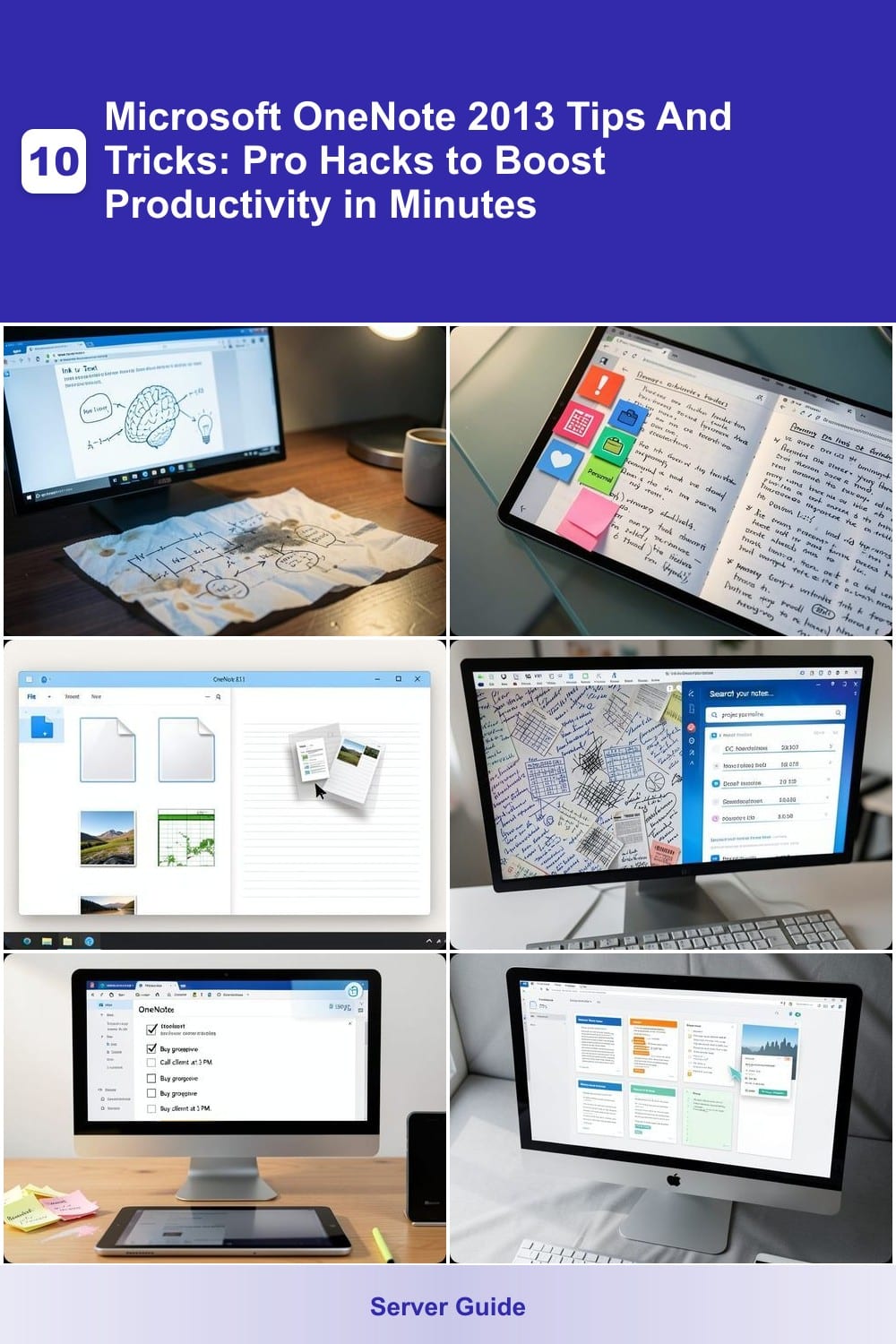
Ever scribbled a brilliant idea on a napkin but wished you could edit it later? OneNote 2013’s handwriting recognition turns messy ink into clean, searchable text—no retyping required. Whether it’s lecture notes, medical scribbles, or brainstorming sketches, this feature bridges the gap between analog speed and digital precision.
The magic happens with Windows Ink integration: jot down equations, lists, or diagrams, then right-click to convert them into editable text or shapes. It even handles math symbols and tables, making it a lifesaver for students and professionals. Accuracy improves with practice, but even rough sketches become usable—no more illegible handwriting excuses!
Perfect for students transcribing lectures, doctors documenting patient notes, or anyone who thinks faster than they type. Just grab a stylus (or even your finger) and let OneNote do the rest. ✨
Tagging System for Instant Note Organization
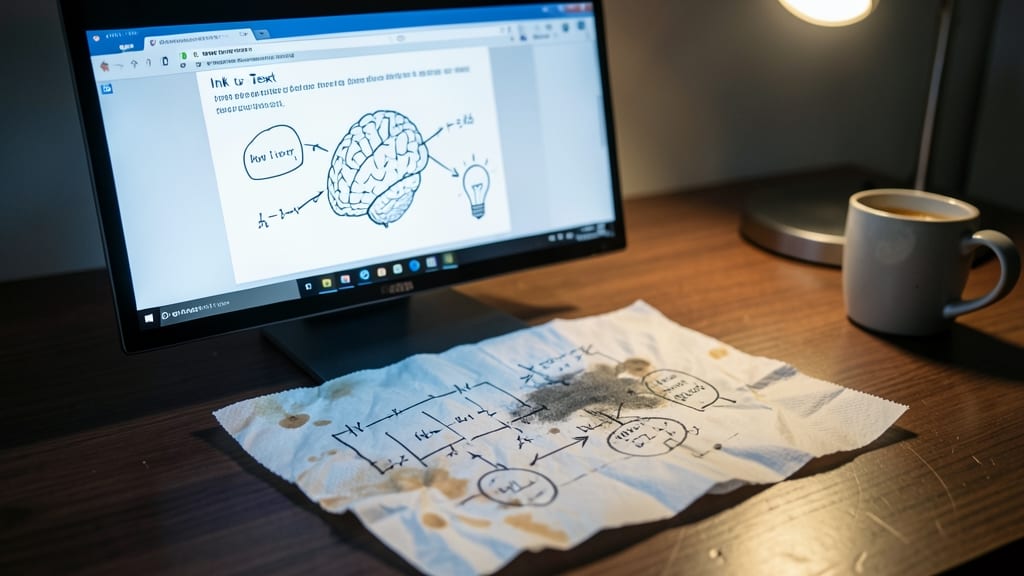
Tired of scrolling through pages of notes to find that one critical piece of information? OneNote 2013’s tagging system turns chaos into clarity with just a few clicks. Assign color-coded tags (like urgent, work, or personal) to instantly categorize notes by priority, project, or deadline—no more losing track of what matters.
Create custom tags with 16 vibrant colors and even add icons for visual cues. The system syncs across devices, so your tags stay consistent whether you’re on a desktop or tablet. Need to filter all urgent tasks? OneNote groups them instantly—no manual sorting required.
Perfect for busy professionals, students juggling deadlines, or anyone drowning in digital clutter. Spend less time searching and more time getting things done. ✨
Drag-and-Drop Files Directly into Notes
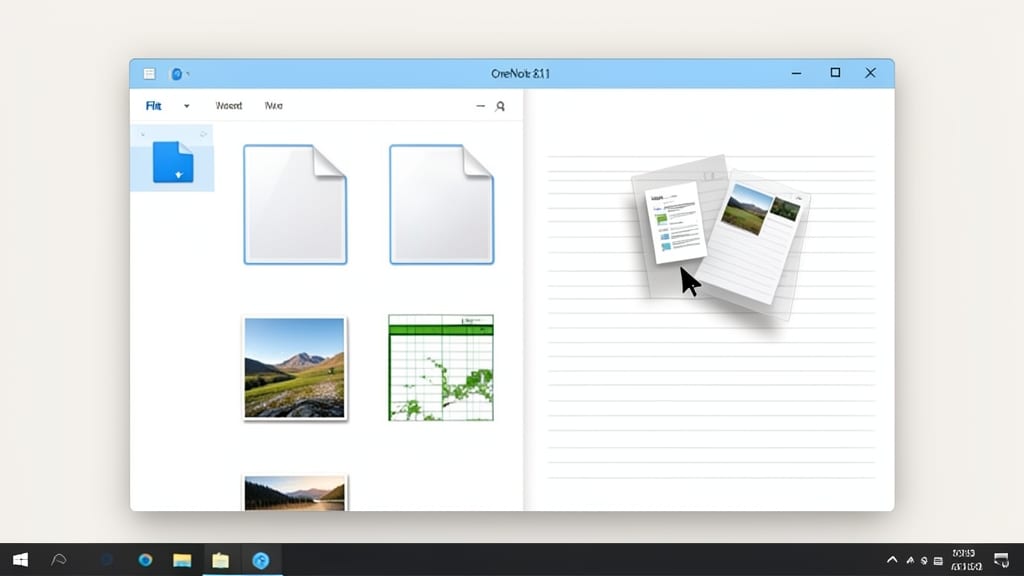
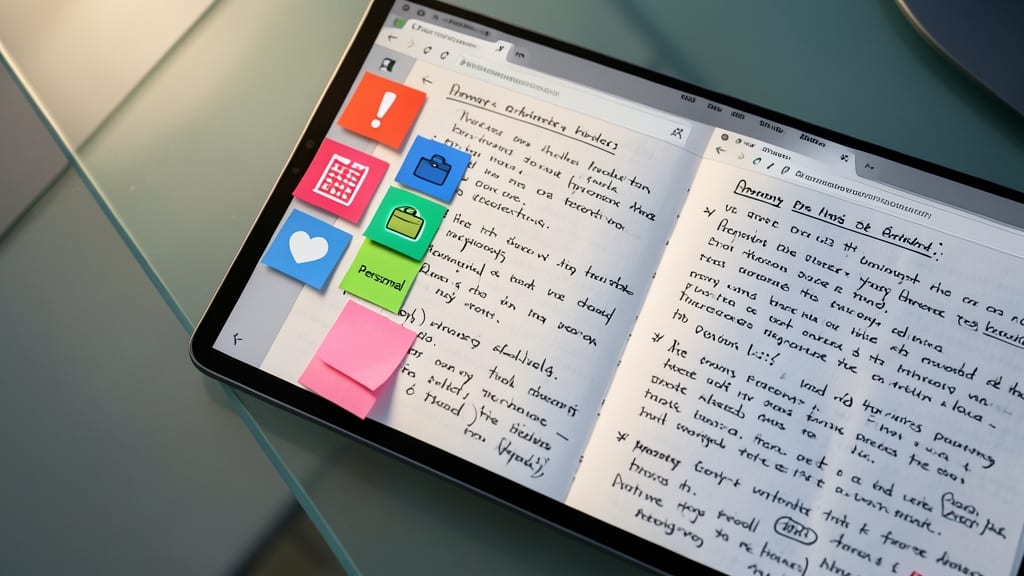
Tired of emailing files to yourself just to reference them later? OneNote 2013’s drag-and-drop file embedding feature lets you attach PDFs, images, spreadsheets, or even Word docs directly into your notes with zero extra steps. Simply open your file in Explorer, drag it into a OneNote page, and it’s instantly embedded—no attachments, no forwarding, just seamless integration.
The embedded files stay fully functional—click to open them, annotate directly in OneNote, or even edit the original file while keeping the link intact. This works for Excel spreadsheets (view charts without opening the full app), PowerPoint slides (present directly from your notes), or scanned documents (OCR them later if needed). Perfect for researchers, meeting notes, or project tracking where reference materials pile up.
Ideal for professionals juggling multiple files, this trick eliminates the clutter of email inboxes and keeps everything in one, searchable place. ⚡
Search Across All Your Notes Instantly
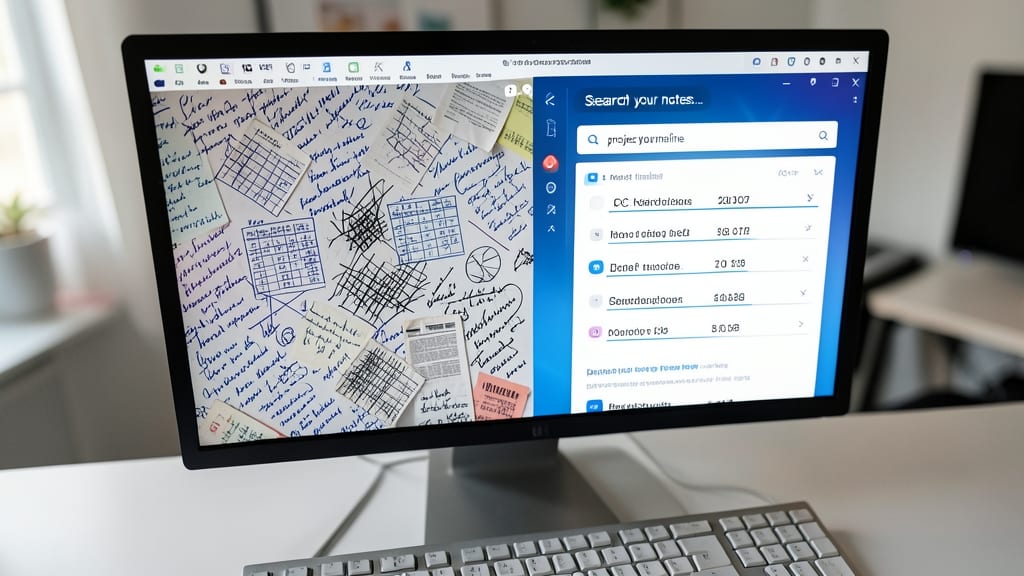
Forget the frustration of scrolling through endless notes—OneNote 2013’s OCR-powered search lets you find keywords even in handwritten scribbles, scanned PDFs, or printed documents. Whether it’s a table of numbers or a doodle with key terms, the search engine indexes everything, so you never lose track of critical info again.
Type any phrase into the search bar, and OneNote highlights matches across all notebooks—no need to remember which section you stored that meeting agenda or research snippet in. The text recognition works on printed documents too, so you can digitize old notes instantly and search them later. Even handwritten equations or tables become searchable, making this feature a game-changer for researchers, students, or professionals juggling multiple projects.
This trick is a lifesaver for anyone drowning in disorganized notes—especially if you switch between digital and physical media. Try it next time you’re hunting for a buried detail! ⚡
Create To-Do Lists with Checkboxes
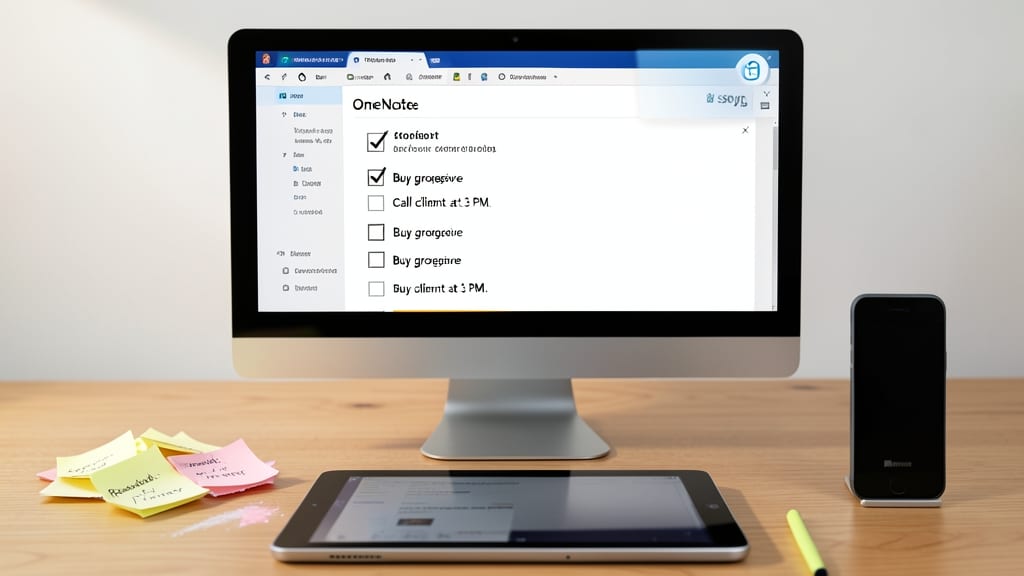
Tired of scribbling tasks on sticky notes that vanish? OneNote 2013’s checkbox feature turns your notes into dynamic to-do lists that sync across your PC, tablet, and phone—no third-party apps needed.
Simply type "[ ]" (or use the Insert > Checkbox option) to create a task. Mark it done, and it’ll turn green instantly. Nest checkboxes under headers to organize projects, or drag tasks between notebooks to prioritize them. The best part? Your progress updates in real-time, so freelancers tracking client deadlines or team leads managing sprints stay aligned without endless emails.
Perfect for those juggling multiple projects—whether you’re a remote worker or a student balancing exams and group work. ⚡
Use Templates for Standardized Notes
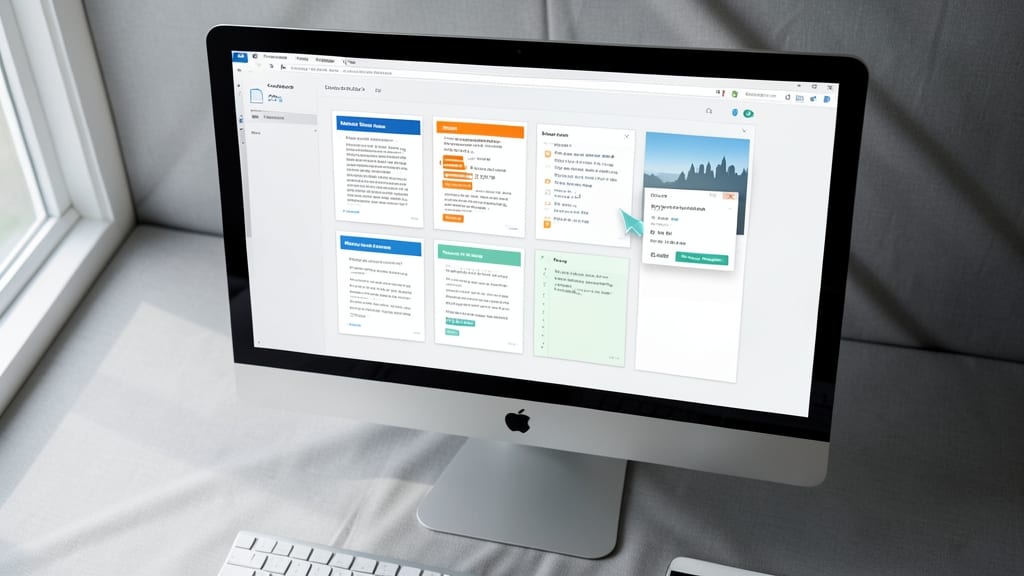
Tired of recreating the same meeting notes or travel itineraries from scratch every time? OneNote 2013’s built-in templates eliminate that frustration with pre-formatted layouts for everything from meeting minutes to grocery lists. No more starting with a blank page—just select a template, fill in the blanks, and maintain consistency across all your notes.
The Meeting Minutes template includes sections for agenda, attendees, action items, and follow-ups, while the Travel Planner organizes flights, hotels, and itineraries in one place. You can even customize or create your own templates by saving frequently used note structures. These templates sync across devices, so your standardized format stays intact whether you’re working from your desktop or tablet.
Perfect for teams needing uniform documentation or individuals who juggle multiple routines, templates turn repetitive tasks into a breeze. Give it a try—your future self will thank you! ✨
Link Notes Between Sections Seamlessly
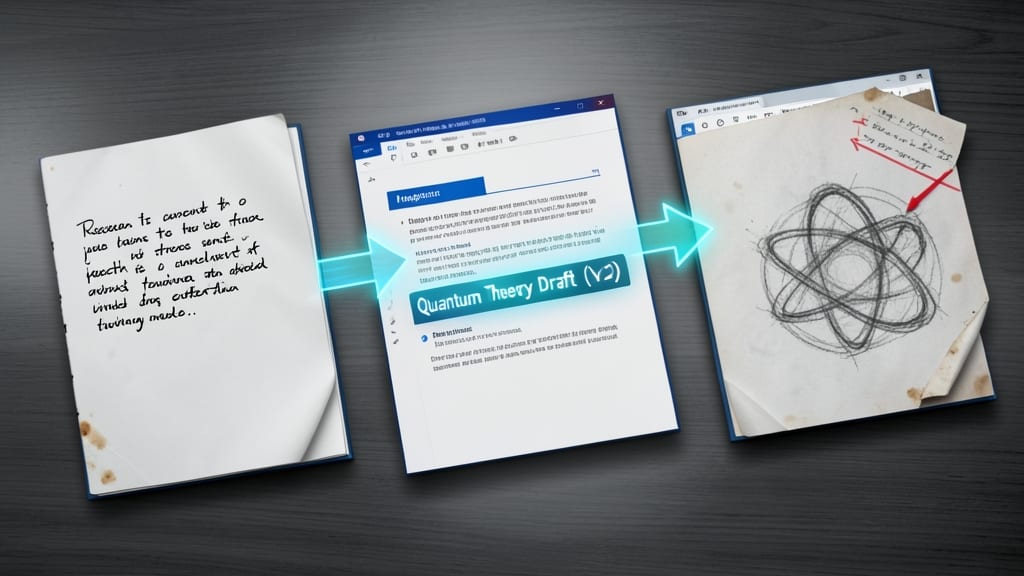
Ever struggled to keep related research notes or project ideas connected across multiple notebooks? OneNote 2013’s hyperlinking feature lets you link sections between notebooks—no content duplication needed. Simply select text or images, right-click, and choose "Link to" to create instant connections that update automatically.
This works across local notebooks and OneDrive-synced files, making it perfect for cross-referencing data without cluttering a single document. The linked text appears as clickable blue hyperlinks, and you can even preview linked content in a small pop-up window. No more digging through folders or copying-pasting—just seamless navigation.
Researchers, writers, and project managers will love this for building dynamic knowledge bases. Whether connecting lecture notes to case studies or linking draft sections to reference materials, it keeps your workflow fluid and organized. ✨
Record Audio Directly into Notes
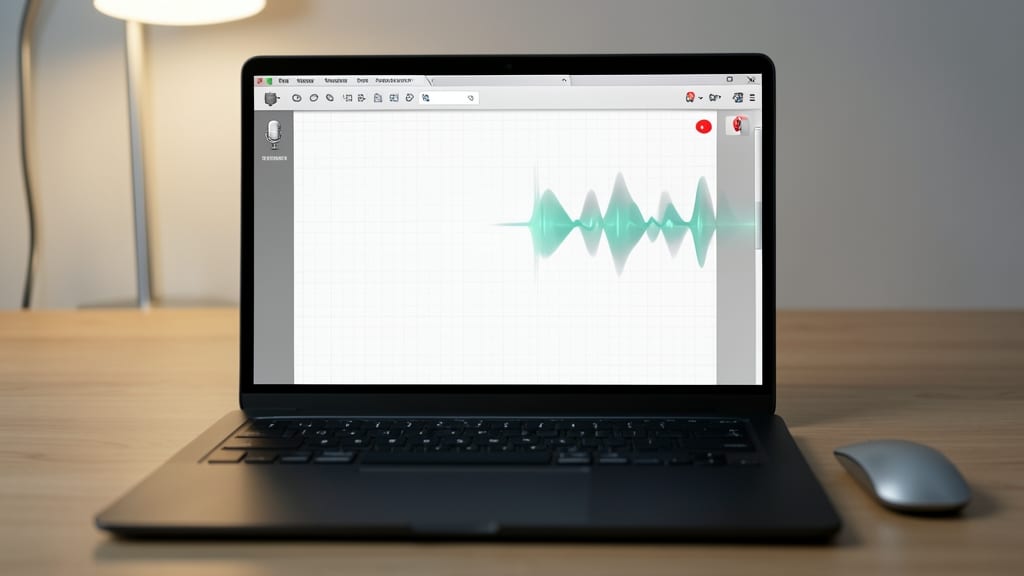
Need to capture a lecture, brainstorming session, or quick idea but don’t want to type it all out? OneNote 2013’s built-in audio recording tool lets you hit record and attach voice memos directly to your notes—no extra apps needed.
Simply click the microphone icon in the ribbon, start recording, and pause/stop as needed. The audio file embeds seamlessly into your note, so you can revisit it later or even transcribe it using Windows Speech Recognition (if installed). Perfect for students, researchers, or anyone who thinks faster than they type.
This feature works best for quick reference or when you’re in a meeting where typing would be disruptive. Just remember to label your recordings clearly—future you will thank you! ✨
Collaborate in Real-Time with Shared Notebooks
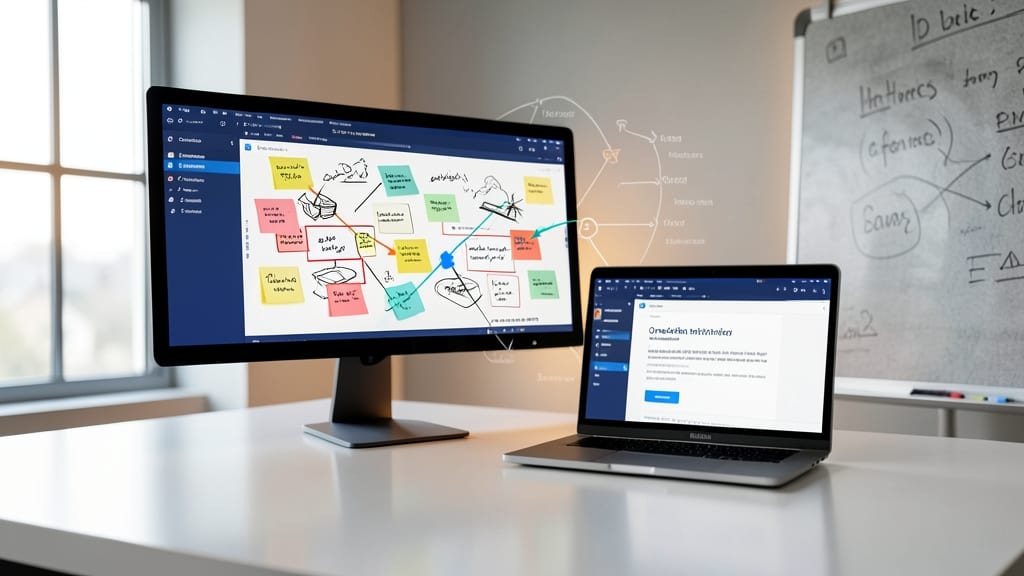
Turn brainstorming sessions into seamless teamwork with OneNote 2013’s shared notebooks, where multiple users edit the same page in real-time. No more emailing drafts back and forth—just invite collaborators via email, and watch ideas flow instantly with live cursors and version history.
This feature supports up to 200 collaborators (per notebook) and tracks changes with colored timestamps, so you’ll never lose track of who contributed what. Perfect for remote teams drafting reports or students collaborating on group projects, it syncs across devices automatically—no extra setup required.
Remote teams and creative groups will love how this eliminates version control headaches. Just share the notebook link, and everyone stays on the same page—literally. ✨
Password-Protect Sensitive Notebooks
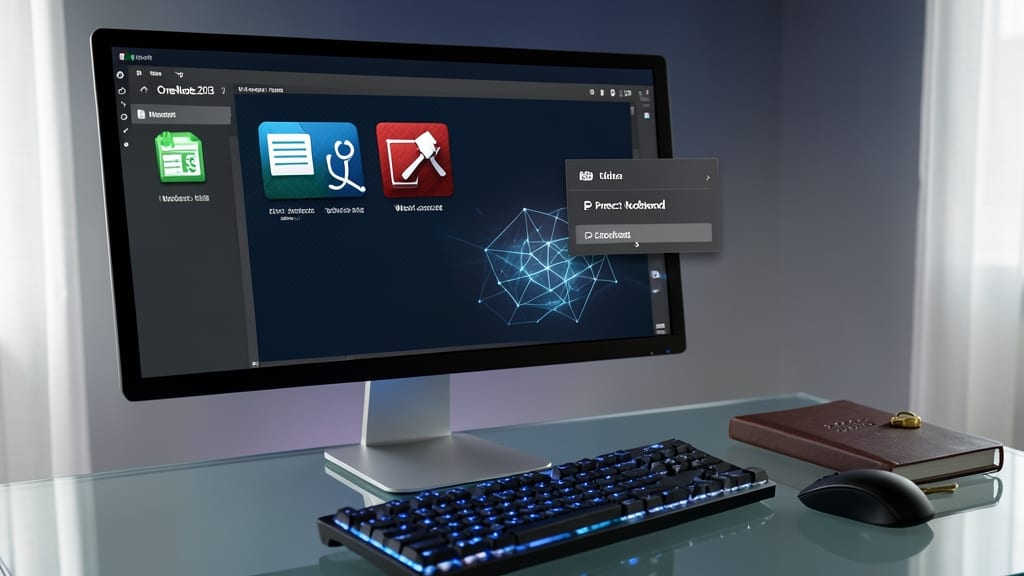
Need to keep your financial spreadsheets, medical notes, or work contracts under lock and key? OneNote 2013’s password protection feature lets you encrypt entire notebooks with a 128-bit AES cipher—industry-standard security built right in.
Right-click any notebook in the left sidebar, select Properties, then check "Encrypt notebook" to set a password. Once locked, only users with the correct passphrase can open it, even if they access your OneNote files directly. This works seamlessly across Windows desktops and laptops, giving you peace of mind whether you're at home or in the office.
Perfect for freelancers handling client contracts, healthcare professionals managing patient records, or anyone juggling sensitive personal data—this is digital security without the complexity. 🔧