
Software
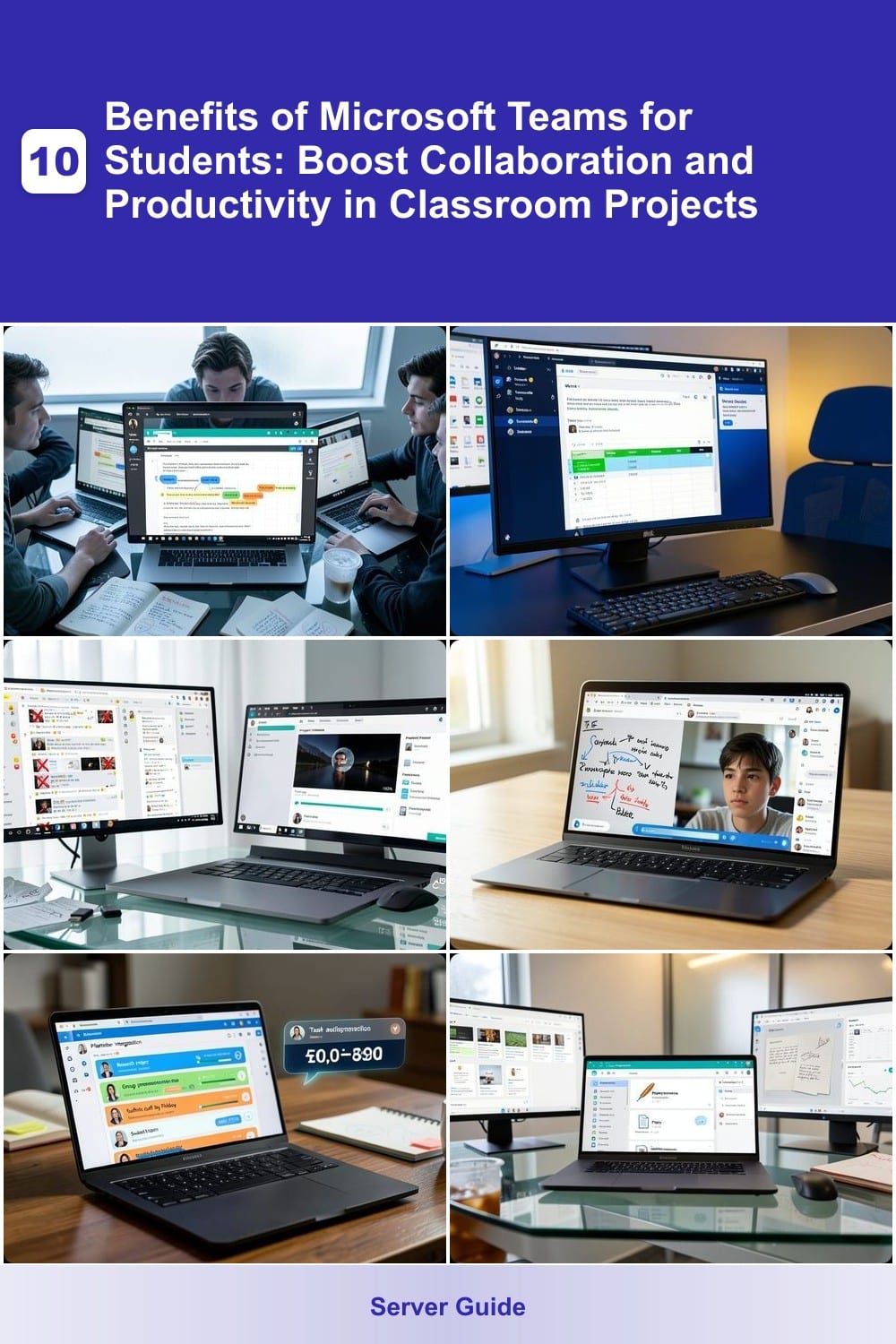
Microsoft Teams isn’t just for professionals—students can unlock powerful collaboration tools to streamline group projects, improve communication, and stay organized. These 10 benefits show how Teams transforms classroom work into efficient, stress-free teamwork.
Real-Time Group Project Collaboration
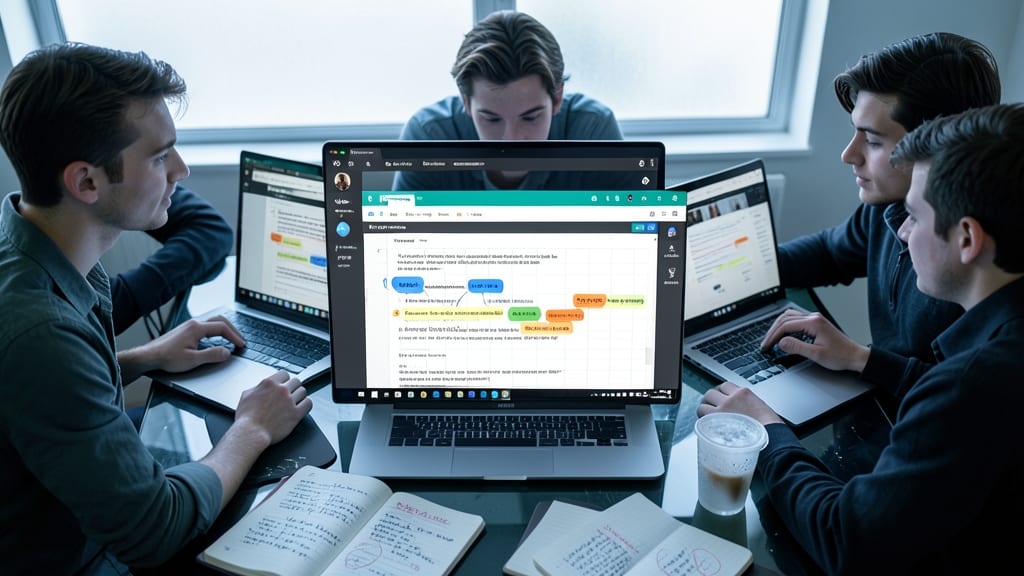
Struggling with last-minute group projects where everyone’s working on different versions of the same file? Microsoft Teams solves that with its real-time co-authoring feature, letting you and your teammates edit documents like Word, Excel, and PowerPoint simultaneously—no more "I saved over yours!" disasters.
The magic happens in shared channels where you can pin files, comment directly on content, and see changes in real time. For example, if your group is drafting a research paper, everyone can contribute sections at once, with version history tracking every edit. This cuts review cycles from days to hours, making it perfect for tight deadlines or large projects with multiple contributors.
Whether you're tackling a 10-person capstone project or a small study group assignment, Teams keeps everyone on the same page—literally. No more scattered emails or confusing file names. ⚡
Seamless Integration with Office 365
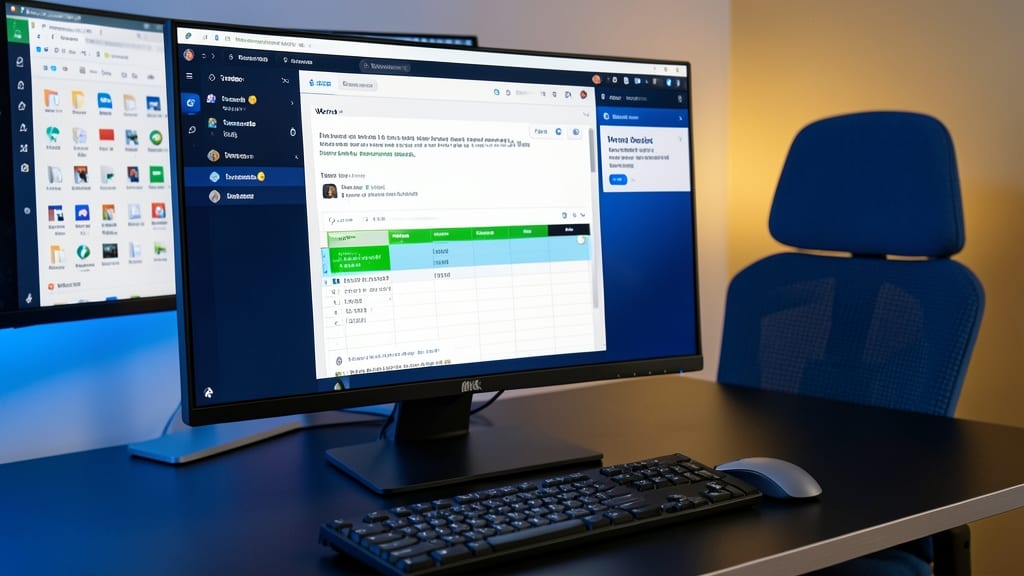
Say goodbye to juggling Google Drive, Dropbox, and email attachments—Microsoft Teams embeds Word, Excel, and PowerPoint files directly into your project channels. No more digging through folders or sending files back and forth; everything stays neatly organized in one place.
With Office 365 integration, you can edit spreadsheets together in real time, present slides during virtual meetings, or review research papers—all without leaving Teams. The zero-config setup means your Word docs auto-save to OneDrive, and Excel files update instantly when multiple team members contribute. Plus, version history tracks changes so you never lose progress.
This is a game-changer for students managing group research papers, financial projects, or design presentations. No more scattered files or last-minute "Did you get the updated version?" messages. ✨
Secure File Sharing Without Email
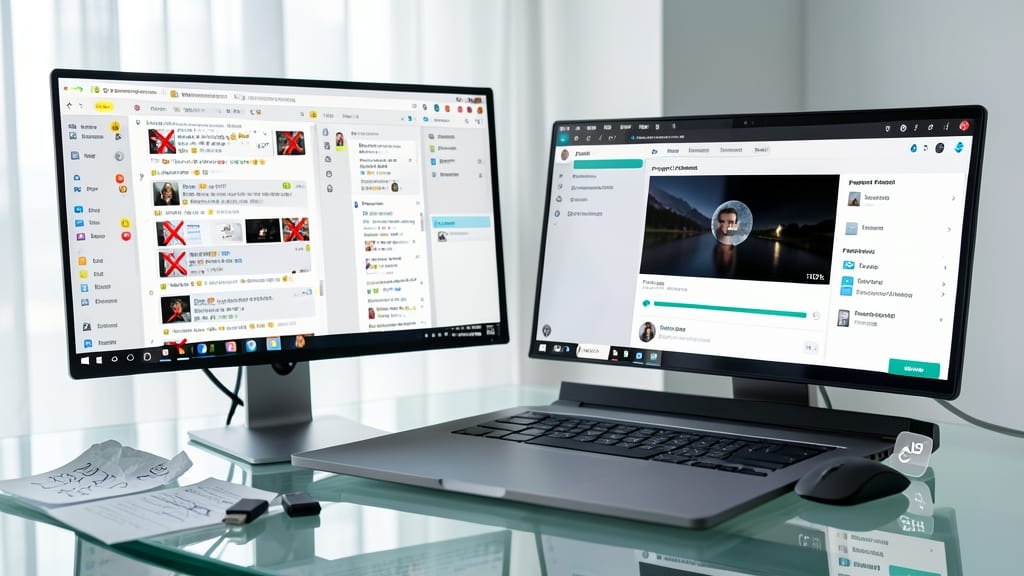
Tired of email chains where attachments get lost or corrupted? Microsoft Teams lets you upload files up to 2GB directly into project channels—no inbox clutter, no "did you get this?" follow-ups. The Files tab organizes everything by team or class, so your 5GB video project stays in one place with version history intact.
Need to share large design portfolios or raw footage? Teams supports drag-and-drop uploads with progress tracking, and permissions let you control who can view or edit files. The OneDrive integration means your files sync automatically, so everyone accesses the latest version—no more "I saved it as V3finalfinal.docx" chaos.
Perfect for film students, graphic designers, or engineering teams working with heavy assets. Say goodbye to email limits and hello to stress-free collaboration. ✨
Built-In Video and Audio Calls
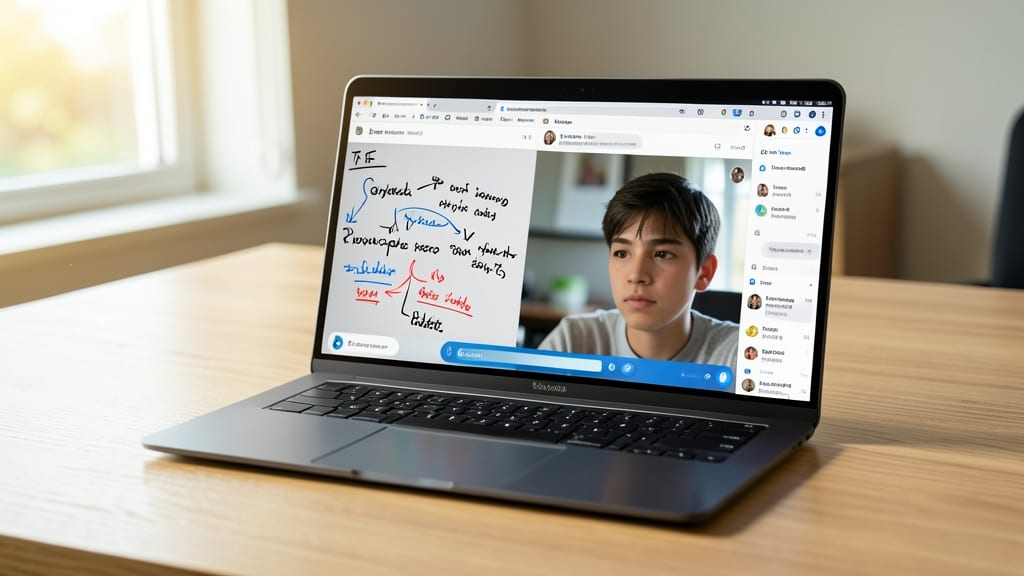
Tired of juggling Zoom links or messy group chats for study sessions? Microsoft Teams’ built-in video and audio calls turn your laptop into a virtual classroom with 4K@30fps video and crystal-clear audio—no extra apps needed.
Schedule study sessions with screen sharing, virtual whiteboards, and background blur to minimize distractions. The AI-powered noise suppression ensures lectures or brainstorming stay clear, even in noisy dorms. Plus, recording meetings lets you replay discussions later—ideal for catching up on missed topics.
Perfect for group projects, language exchanges, or virtual office hours, Teams keeps everything in one place. No more logging into separate platforms—just click, join, and collaborate. ✨
Task Assignment and Deadline Tracking
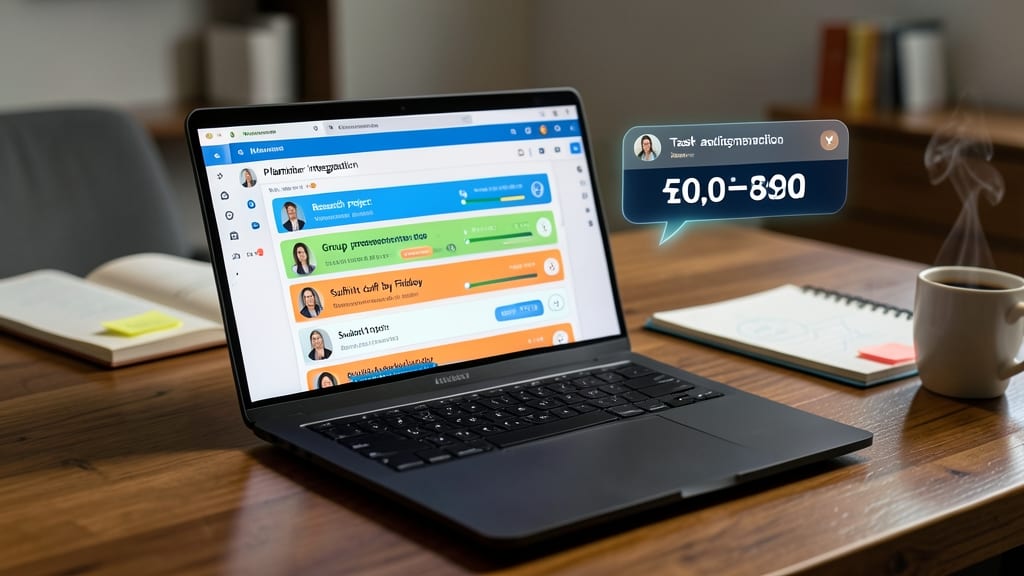
Forget juggling group chats and sticky notes—Microsoft Teams lets you assign tasks directly to classmates with clear deadlines, all in one place. The Planner integration lets you create color-coded to-do lists, set reminders, and track progress without switching apps.
You can assign specific tasks to team members, add due dates, and even check off completed items as a group. The calendar sync ensures deadlines appear in your Outlook, so you’ll never miss a submission. Plus, the @mentions feature keeps everyone accountable when tasks are overdue.
This is perfect for group projects where everyone needs to know their role—no more "I thought someone else was handling that!" moments. 💪
Private Study Group Chats
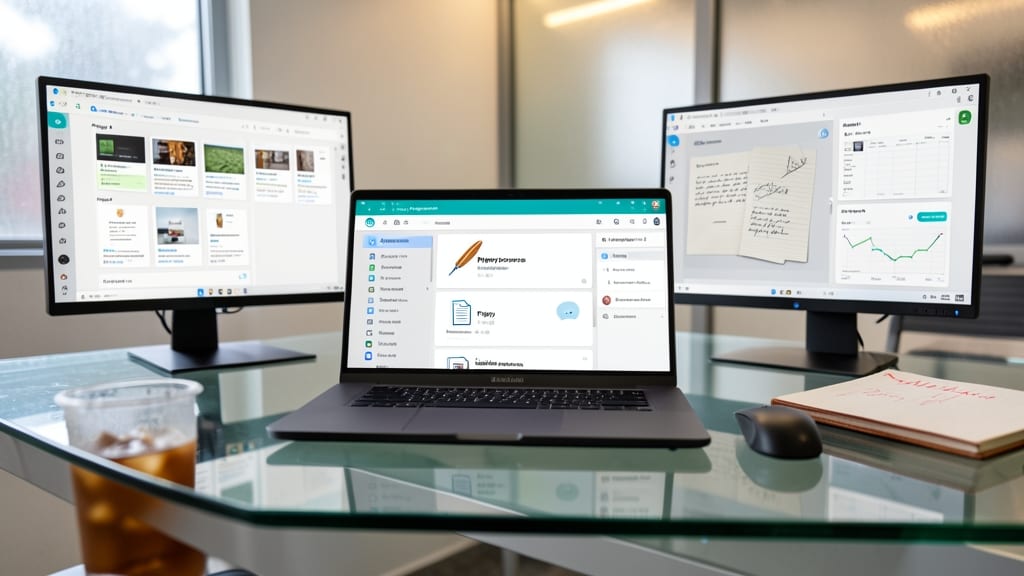
Tired of scrolling through endless group chats to find that one important message about your history project? Microsoft Teams lets you create dedicated channels for each class or assignment, so discussions stay organized and on-topic.
With private study group chats, you can pin key files, tag classmates directly, and even set channel-specific notifications. The tabbed interface keeps all project-related conversations separate from personal messages, while read receipts ensure everyone stays in the loop. Plus, you can customize channel names—like "CS101 Group Project" or "Study Session: Organic Chemistry"—so it’s crystal clear what each space is for.
This feature is a game-changer for students juggling multiple projects or collaborating with large groups. Whether you're brainstorming ideas or dividing tasks, focused channels keep the chaos out of your inbox. ✨
Screen Sharing for Remote Tutoring
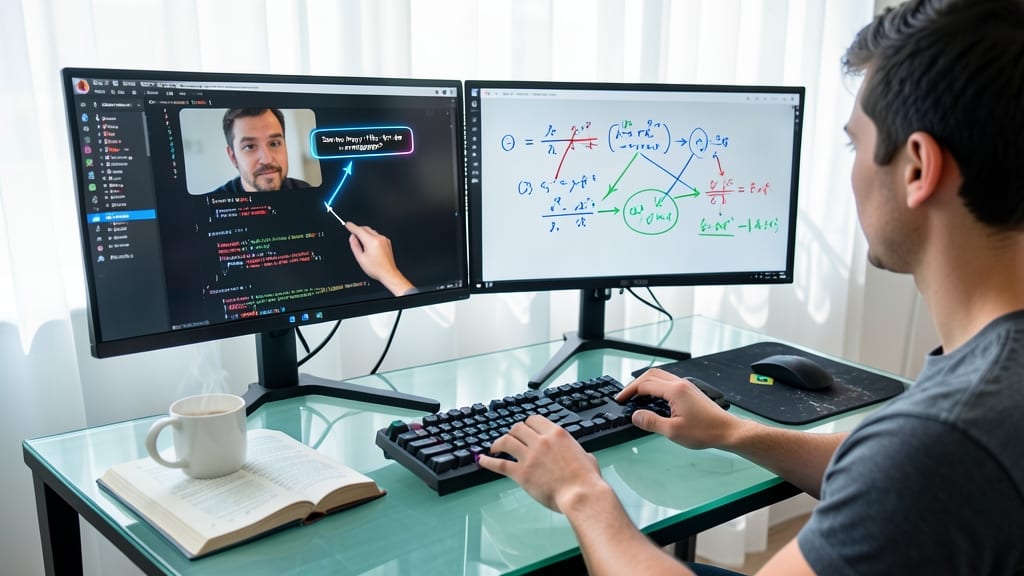
Stuck debugging a Python script or struggling with a complex math formula? Microsoft Teams’ screen-sharing feature turns virtual office hours into interactive learning sessions. Instead of vague explanations over chat, professors or peers can see exactly what you’re working on—highlighting errors, suggesting fixes, or walking through solutions in real time.
The tool supports high-quality HD sharing (up to 4K resolution) and lets tutors annotate directly on your screen using a digital pen. Whether you’re troubleshooting coding errors, reviewing lab reports, or brainstorming design concepts, the low-latency connection ensures smooth collaboration—no more waiting for screenshots or miscommunication. Plus, the recording feature lets you replay sessions later for review.
This is a game-changer for STEM students, artists, or anyone needing hands-on guidance. No more back-and-forth emails or confusing explanations—just clear, visual learning. 💻
Integration with Classroom Learning Tools
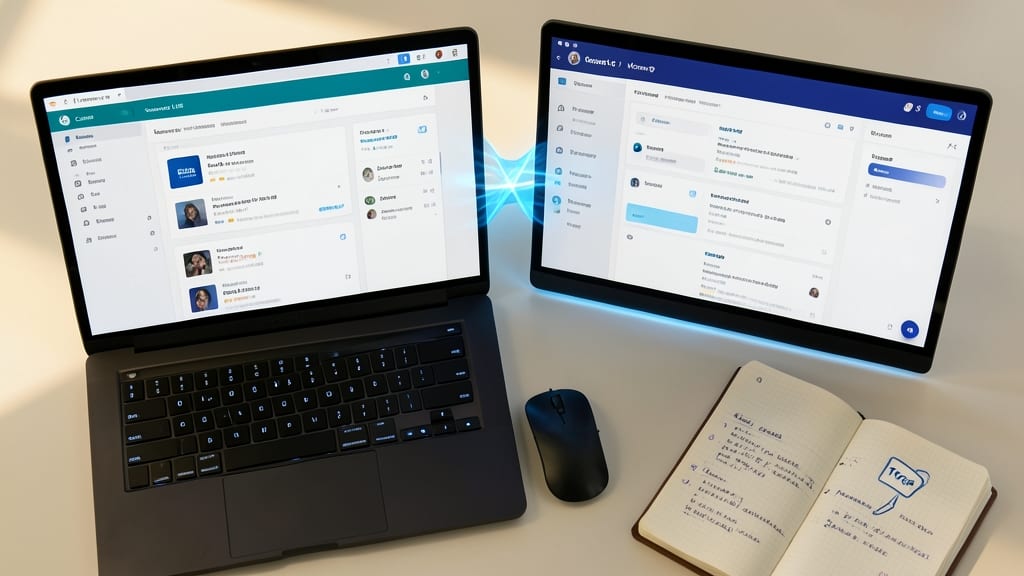
Tired of juggling between your LMS (Canvas, Blackboard) and collaboration tools? Microsoft Teams bridges the gap by integrating directly with these platforms, creating a single hub for everything academic.
With deep LMS integrations, Teams syncs assignments, grades, and announcements—so you never miss a deadline or update. The Canvas or Blackboard app in Teams lets you view coursework alongside your project files, while calendar events auto-populate to keep your schedule aligned. Best of all, it’s zero-config for most universities, meaning setup takes minutes.
This is a game-changer for online or hybrid students who rely on multiple tools. Whether you're reviewing lecture notes or collaborating on a group project, everything stays in one place—no more tab-switching chaos. ✨
Mobile Access for On-the-Go Students

Forget being glued to your desk—Microsoft Teams’ mobile app turns your smartphone into a productivity powerhouse. Whether you’re waiting for the bus, riding the train, or grabbing coffee between classes, you can receive real-time notifications, reply to messages, and even join video calls without missing a beat.
The app mirrors all desktop features, including file previews, task updates, and channel navigation, so you never feel disconnected. Offline mode lets you draft messages or mark tasks as complete when connectivity drops, syncing automatically when you’re back online. Plus, the intuitive interface ensures even first-time users can jump in without a tutorial.
Perfect for commuters, international students, or anyone juggling multiple classes—this keeps your academic life on track, no matter where life takes you. ✨
Automated Meeting Notes and Transcripts
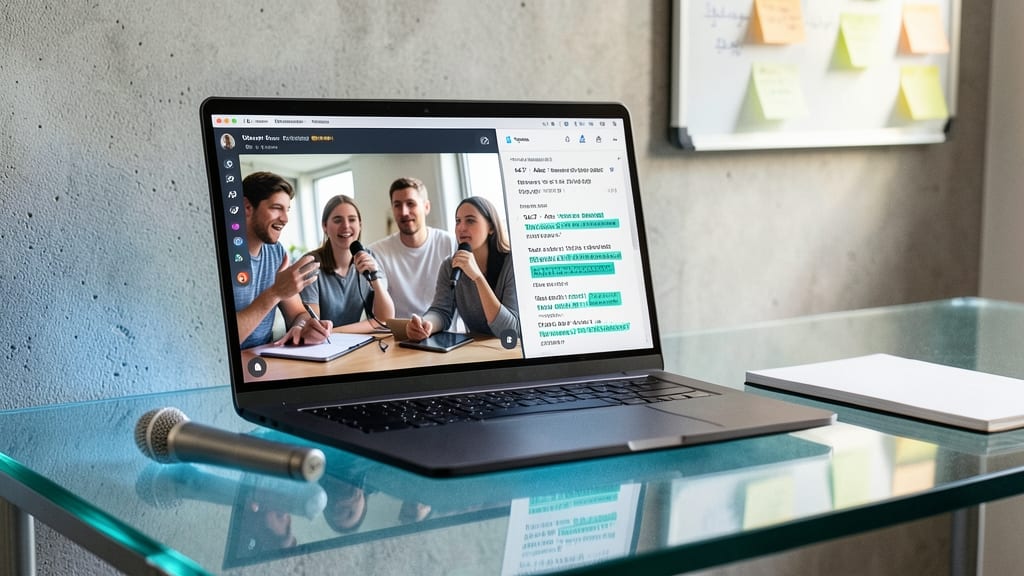
Ever missed a key detail during a study session or group meeting? Microsoft Teams’ automated meeting transcripts solve that problem by recording and transcribing discussions in real time—no manual note-taking required.
With AI-powered transcription, Teams captures spoken words, timestamps, and even speaker labels, so you can later search for specific topics or share a snippet with classmates. The feature works seamlessly with video calls, screen sharing, and breakout rooms, ensuring nothing slips through the cracks. Plus, transcripts are saved directly in the chat history for easy reference.
Perfect for students juggling multiple projects, this tool helps you focus on the discussion instead of frantically scribbling notes. Whether reviewing lecture recordings or recapping brainstorming sessions, Teams keeps your ideas organized and accessible. ✨