
Tip & Trick
Remote work opens doors to flexibility but exposes you to cyber threats like phishing, malware, and data breaches. These 10 security best practices act as your digital armor, blocking attacks before they compromise your work or personal data—no tech degree required.
Multi-Factor Authentication for Every Account
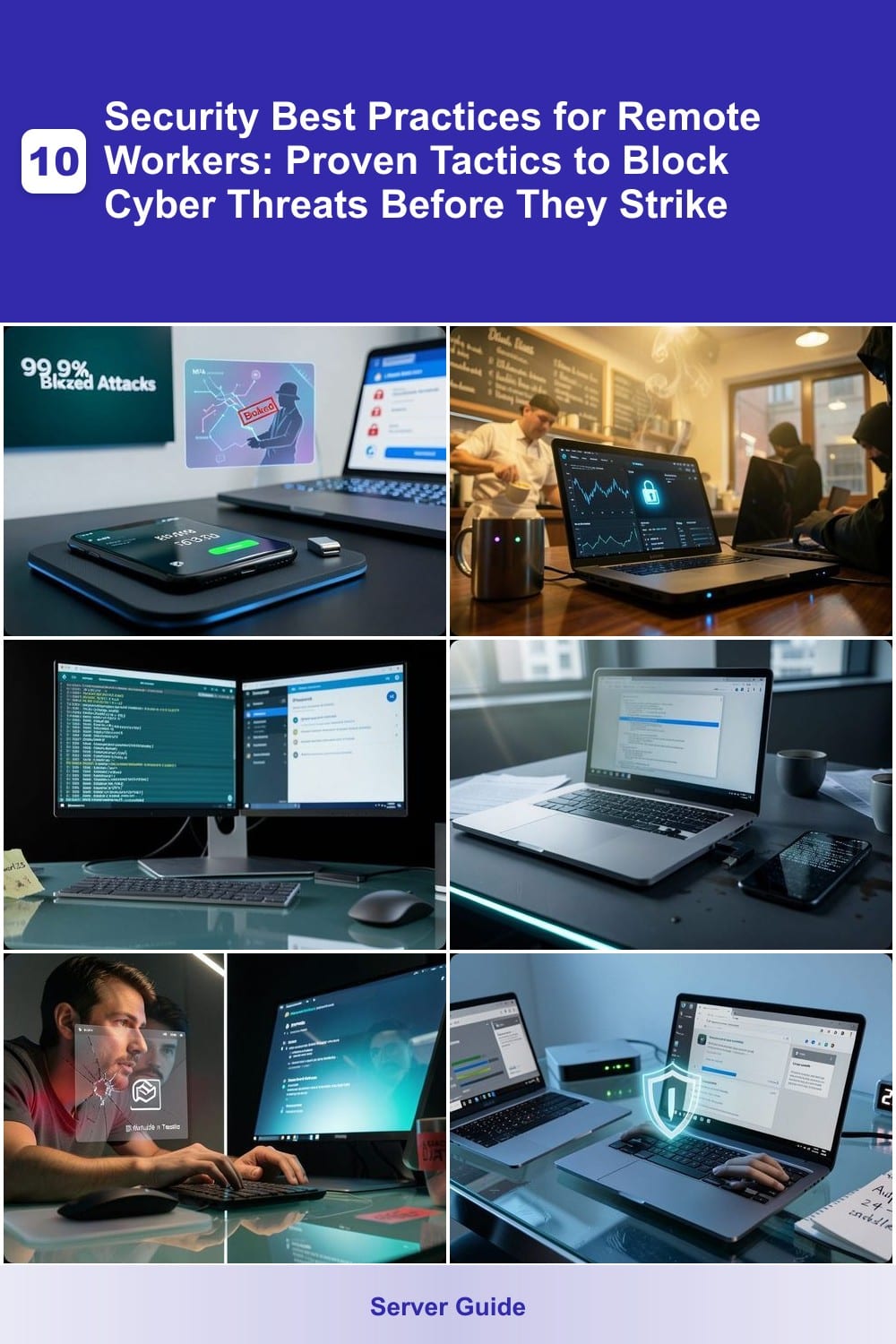
Credential theft is the #1 entry point for cyberattacks—but multi-factor authentication (MFA) shuts it down before it starts. With just one extra step, you can block 99.9% of automated attacks targeting your accounts, whether it's your work email, banking, or cloud services.
Start by enabling MFA on all critical accounts using TOTP apps like Authy or Google Authenticator for convenience, or hardware keys (like YubiKey) for the highest security. These methods require a second device or physical token—something only you possess—making stolen passwords useless. Even better? Many services now support push notifications or biometric verification (fingerprint/face ID) for frictionless logins.
This is the lowest-effort, highest-impact security upgrade you can make—perfect for remote workers juggling multiple accounts. Set it up once, and breathe easy knowing your data stays locked down. ⚡
VPN Usage on Public and Home Networks
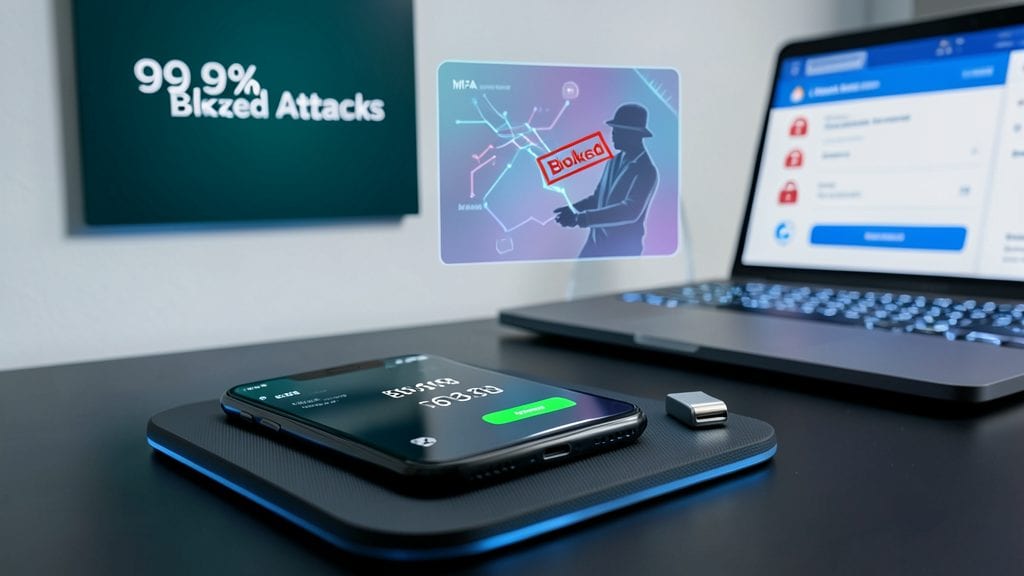
Public Wi-Fi at coffee shops and even some home routers are prime targets for hackers looking to intercept your data. A VPN (Virtual Private Network) acts as your digital bodyguard, encrypting all traffic between your device and the internet—so even if someone’s snooping on the network, they’ll only see scrambled data.
Top-tier VPNs like NordVPN or ExpressVPN offer military-grade AES-256 encryption, no-log policies, and server networks spanning 90+ countries. They’re especially critical when accessing company emails, financial systems, or client databases, as they prevent man-in-the-middle attacks that could expose passwords or sensitive files.
Remote workers, freelancers, and anyone handling confidential data should use a VPN by default—whether on a hotel network, a neighbor’s unsecured Wi-Fi, or even your home setup if your ISP has a history of selling user data. 💻
Password Manager with Strong, Unique Passwords
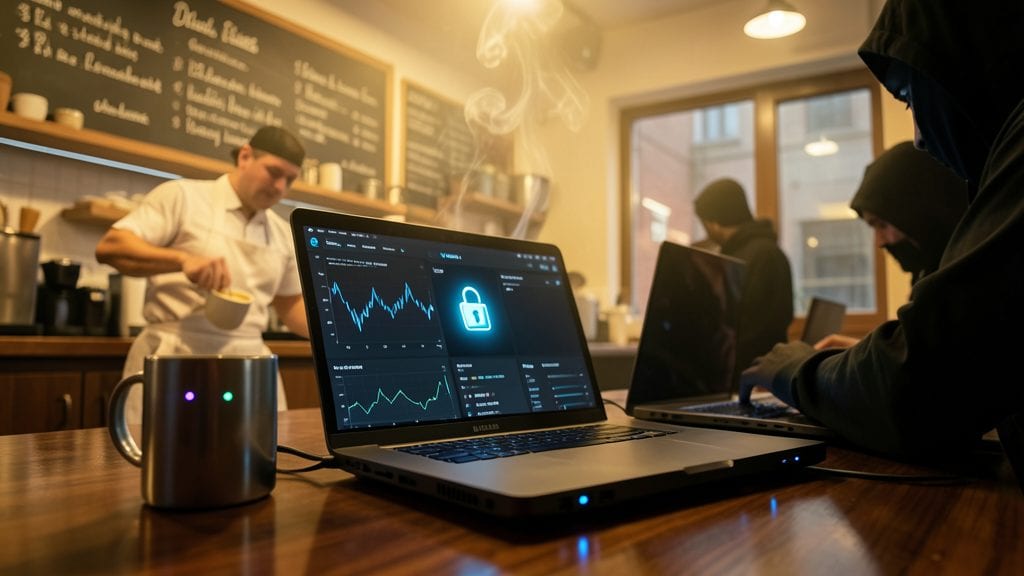
Tired of reusing passwords like "Password123"? A password manager like Bitwarden or 1Password eliminates weak links by generating and storing 24-character, cryptographically secure passwords—automatically. No more sticky notes or browser autofill risks.
These tools sync seamlessly across Windows, macOS, Android, and iOS with end-to-end encryption, ensuring even your master password stays protected. Both meet FIPS 140-2 Level 2 compliance, making them trusted by enterprises while offering free plans for individuals. The real game-changer? One-click login that works everywhere, from work emails to personal accounts.
Perfect for remote workers juggling multiple accounts—especially those handling sensitive data. 💻
Device Encryption and Full-Disk Protection

Losing a laptop or phone isn’t just a hardware headache—it’s a potential security nightmare if your data isn’t protected. Full-disk encryption (like BitLocker for Windows, FileVault for macOS, or LUKS for Linux) scrambles every file into unreadable ciphertext without your passphrase, making stolen devices useless to thieves.
These tools encrypt entire drives, not just folders, so even if someone bypasses your login screen, they’ll hit a brick wall. BitLocker integrates with Windows Pro/Enterprise, FileVault requires no extra setup on Macs, and LUKS offers open-source flexibility for Linux users. Recovery keys act as a last-resort backup—just store them securely offline.
This is non-negotiable for contractors, freelancers, or anyone handling sensitive work data. Even if your device gets swiped, your files stay locked tight—no ransomware payouts or data leaks. ✨
Secure File Sharing with End-to-End Encryption
Email attachments are the #1 way sensitive data gets leaked—even with password protection, they’re vulnerable during transit. End-to-end encrypted file sharing solves this by ensuring only you and the intended recipient can access files, regardless of where they’re stored or who handles them.
Tools like Proton Drive (built by the makers of ProtonMail) or Box’s end-to-end encryption for select files add an extra layer over standard cloud storage. Cryptomator takes it further by encrypting files locally before they ever hit the cloud, so even your provider can’t decrypt them. For teams, Virtru integrates with Outlook and Gmail to auto-encrypt attachments with a simple click.
This is non-negotiable for HR documents, legal contracts, or financial reports—anything that shouldn’t survive a data breach. 💡
Regular Software Updates and Patch Management
Most malware and ransomware attacks exploit unpatched vulnerabilities—and the fix is simpler than you think. Enabling automatic updates for your OS, browsers, and apps (like Chrome, Edge, or Firefox) closes security holes before hackers can weaponize them, often in under 24 hours of discovery.
Windows Windows Update (set to "Automatic" in Settings > Windows Update), Apple Software Update (System Preferences > Software Update), or Linux package managers (like apt or dnf) handle the heavy lifting—just ensure they’re enabled. For apps, use built-in auto-update features (e.g., Slack, Zoom, or Microsoft 365) or tools like Patch My PC for granular control. Pro tip: Schedule updates during off-hours to avoid disruptions.
This is the lowest-effort, highest-impact security measure for remote workers—especially those handling sensitive data. ⚡
Phishing Resistance Training and Simulations
Your biggest security weak spot might not be your devices—it’s your team’s ability to spot phishing scams. KnowBe4 and Google Security Checkup turn employees into proactive defenders with realistic phishing simulations, cutting click-through rates by up to 70% through gamified learning.
These platforms send customizable, scenario-based tests (fake invoice scams, urgent "CEO" emails) that mimic real attacks. After a click, users get instant feedback and training modules to strengthen their skills. The zero-config setup integrates with Microsoft 365 or Gmail, making it easy for IT teams to deploy company-wide.
Perfect for remote teams where human error is the #1 breach vector—especially if your staff handles payments, HR data, or client communications. 💡
Physical Security for Home Workspaces

Your home workspace isn’t just a digital battleground—it’s a physical one too. Shoulder-surfing, stolen devices, and discarded documents with sensitive data can expose you just as easily as a phishing email. Physical security measures like cable locks ($20–$50), privacy screens (under $30), and cross-cut shredders ($50–$150) create a layered defense against unauthorized access.
A Kensington Security Cable Lock (rated for up to 1,000 lbs of force) keeps your laptop bolted to your desk, while 3M Privacy Filters block prying eyes from seeing your screen at angles. For documents, a Fellowes 103Cs Cross-Cut Shredder destroys paper into 1/8-inch strips, making it nearly impossible to reconstruct sensitive info. These tools are low-cost but high-impact, turning your home office into a fortress against physical threats.
This setup is ideal for freelancers handling client data, remote employees with NDAs, or anyone who’s ever left sensitive notes in an unsecured trash bin. A few minutes of setup now can save hours of cleanup later—plus, it’s a great conversation starter with your IT team. 💪
Zero-Trust Network Access Policies

Your home network might feel safe, but cybercriminals don’t play by traditional rules. Zero-trust policies eliminate the assumption that any device or user is inherently trusted—even on your own network. Instead of relying on firewalls alone, these policies verify every access request as if it originated from an unknown source.
Tools like Microsoft Conditional Access integrate with Active Directory to enforce rules based on device health, user location, and risk levels, while Zscaler Private Access creates encrypted tunnels for applications without traditional VPNs. Both solutions ensure only authorized, compliant devices access sensitive resources—blocking compromised or unmanaged endpoints instantly.
This approach is ideal for businesses handling customer data, financial records, or intellectual property, but remote workers can also benefit by pushing their IT teams to adopt similar controls. 🌟
Incident Response Plan for Cyber Attacks
Even the best security measures can fail—so having a pre-built incident response plan means you’re ready to act before panic sets in. The NIST Cybersecurity Framework provides a battle-tested template to document critical steps like isolating compromised devices, notifying IT, and restoring systems from clean backups.
Start with a clear escalation path (e.g., "Report suspicious activity to IT within 10 minutes"), define role-specific actions (e.g., "IT locks accounts; managers notify leadership"), and pre-configure automated backups for rapid recovery. Tools like Splunk or IBM QRadar can help monitor anomalies in real time, while playbooks ensure consistency during high-pressure breaches.
This isn’t just for IT teams—every remote worker should know basic steps like disconnecting from Wi-Fi or avoiding suspicious links until IT investigates. A well-documented plan turns chaos into control. ✨